Add or change a contact form
- All plans
- Computer or phone
- Updated
In Vistura, every new tour comes with a Contact form that opens from your card and the Contact button. You can change its questions or make your own forms with Add > Form. Each answer arrives in Leads and by email. It works on every plan.
Steps
Make a new form
- In the editor, select Add (the + at the top right on a phone), then Form.
- Choose a starting point: Contact, Book a viewing or Blank.
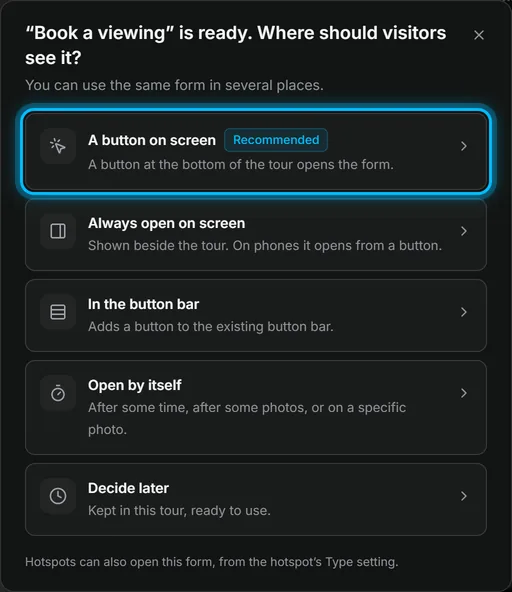
- Choose where buyers see it:
- A button on screen: a button at the bottom of the tour;
- Always open on screen: beside the tour, from a button on phones;
- In the button bar: next to the other buttons;
- Open by itself: after some time, after some photos, or on a chosen photo;
- Decide later: kept in the tour for later.
Change the questions
- Open the Screen & contact tab of the photo list (on a phone, with the panel button at the top left).
- Under Forms, select the form. Its settings open.
- Under What visitors see, change the title and the text under it.
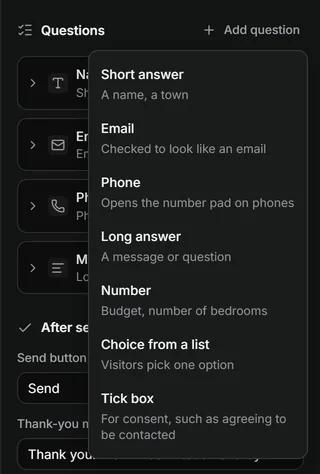
- Under Questions, select a question to edit it, or Add question to add one. Switch on Required for the answers you need.
- Under After sending, write the Thank-you message.
- Select Try the form to fill it in as a buyer. Nothing is sent.
Result buyers fill in the form inside the tour. You see each answer in Leads, with the tour it came from, and get it by email.
Was this helpful?
Thanks for telling us.
Sorry it did not help. Write to us and we will answer: support@vistura.app
More in this section: Build the tour
- Add, replace and download photos
- Organise rooms and floors
- Name the tour and choose its cover
- Link the rooms so buyers can walk through
- Property details, location and what's nearby
- Add notes, photos and buttons inside a room
- Add or change a contact form
- Add a floor plan to your tour
- Add a video (drone or walk-through)
- Narrate the rooms and run a guided tour