Let buyers book a viewing from your tour
- Plan: Pro
- Computer or phone
- Updated
In Vistura, buyers book a viewing straight from your tour: set your hours once in Settings > Visit calendar, then turn on Visit booking in each tour. Booking needs Pro or Business on your account.
Steps
Step 1: Set your calendar (once for every tour)
- On your dashboard, select Settings, then Visit calendar.
- Under Where visitors book, keep In the tour, with these hours.
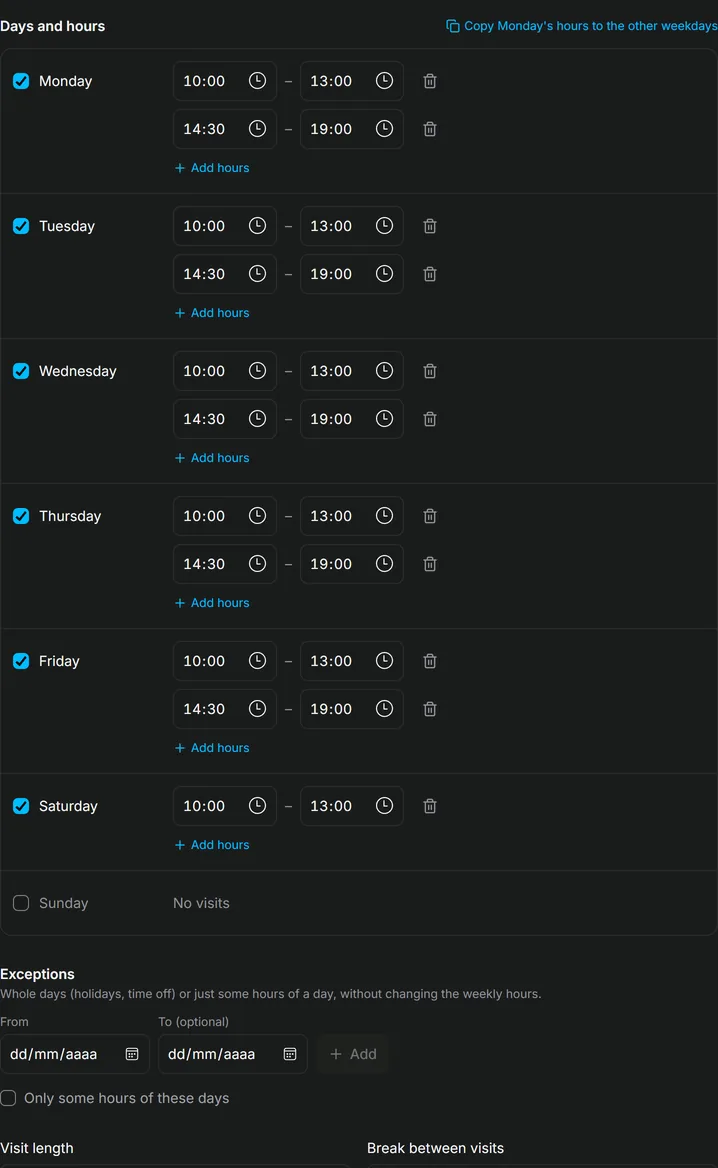
- Under Days and hours, tick each day you show homes and set the hours.
- For a lunch break, select Add hours and set the second block of hours.
- To give every weekday the same hours, select Copy Monday's hours to the other weekdays.
- Choose the Visit length, the Break between visits, the Minimum notice and how far ahead buyers can book (Bookings up to).
- Under Exceptions, add holidays or a busy afternoon. Tick Only some hours of these days to block only some hours.
- Read the example line under the settings: it shows the times buyers will see on your next open day.
Everything saves by itself.
Step 2: Turn booking on in the tour
- Open the tour in the editor.
- Open the photo list (on a phone, tap the panel button at the top left), then select Tour settings (the gear above the list).
- In General, turn on Visit booking.
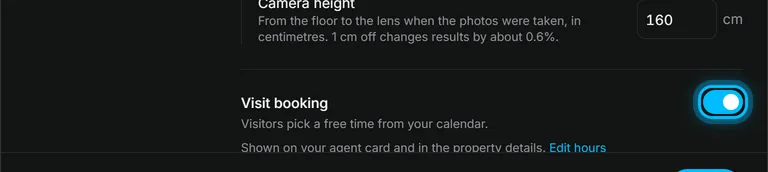
Buyers now find Book a visit on your agent card and in the property details.
Step 3: Add a booking button (optional)
- A point in a room: select Add > Point on the photo, select the photo, then choose Book a viewing.
- A button on screen: select Add > Button, then under Action choose Book a visit.
Result a buyer picks a day and a free time, leaves a name and a phone or email, and taps Book the visit. The lead arrives in Leads as Visit booked, with the time. You get an email with a calendar file, and so does the buyer if they left an email. The time is no longer offered.
Was this helpful?
Thanks for telling us.
Sorry it did not help. Write to us and we will answer: support@vistura.app