Manage your leads
- All plans
- Computer or phone
- Updated
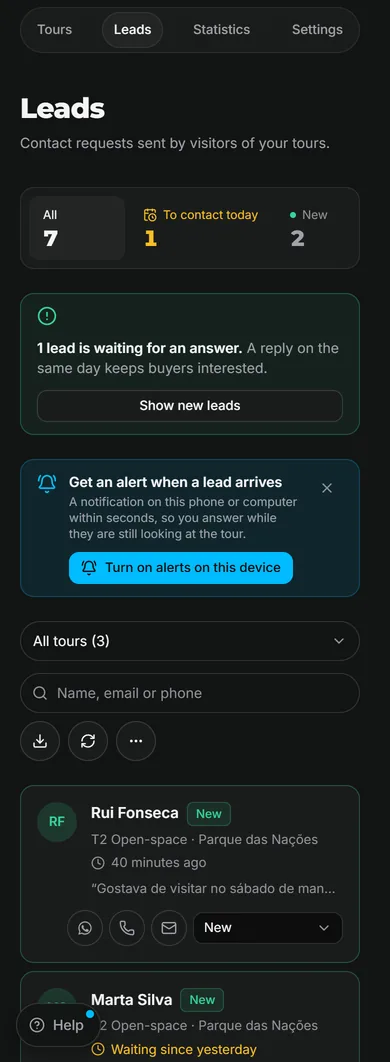
Every enquiry from your Vistura tours lands in Leads on your dashboard: the forms, the messages from your agent card and the viewings booked from the tour. You reply in one tap, export and choose how long leads are kept on every plan. Stages, notes and follow-up dates need Pro or Business.
Steps
Answer a new lead
- On your dashboard, select Leads.
- Find the lead in the list. New leads have a green border.
- Select the WhatsApp, phone or email button on its card. WhatsApp opens with a greeting that names the tour, ready to send.
On Pro or Business, answering a lead in New moves it to Contacted. A message on screen lets you undo it.
Export your leads
- Select the download button next to the search box.
- Open the CSV file in Excel or Google Sheets.
The file has the leads the list shows, so filter first if you want only some.
Choose how long leads are kept
- Select More actions next to the search box, then How long leads are kept.
- Pick a period or Until I delete them.
- Select Save changes.
Leads older than that period are deleted straight away and again every day, and cannot be brought back. Export first if you want a copy.
Move a lead through the stages
- Select the lead's name to open it.
- Under Stage, select where the lead stands: New, Contacted, Visit booked, Offer, Won or Lost.
You can also change the stage from the list on each card. The counters at the top show how many leads are in each stage. Select one to see only those leads.
Add a note and a follow-up date
- In the open lead, under Follow up on, select Tomorrow, In 3 days or Next week, or pick a date.
- Under Notes, type what you need to remember. The note saves when you leave the field.
- Select Done.
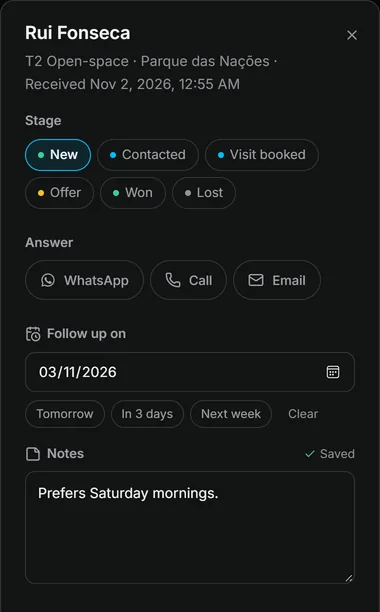
Result on the day you chose, the lead shows in To contact today at the top of the list.
See who is waiting for an answer
- A green line at the top counts the new leads waiting for an answer for more than an hour. Select Show new leads to list them.
- A new lead that has waited more than a day shows when it arrived in orange on its card.
- A viewing booked from the tour puts the lead in Visit booked, with the day and time on its card.
Was this helpful?
Thanks for telling us.
Sorry it did not help. Write to us and we will answer: support@vistura.app