Narrate the rooms and run a guided tour
- Plan: Pro
- Computer or phone
- Updated
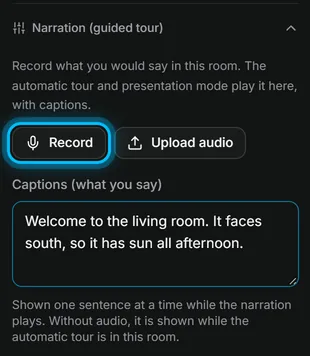
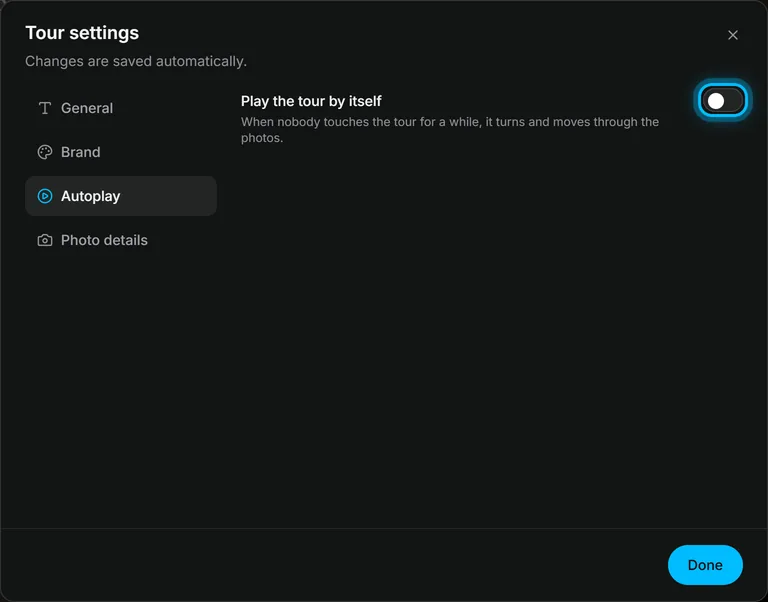
In Vistura, you narrate a room from the photo's settings, under Narration (guided tour): record your voice or upload an audio file, and type what you say as captions. The guided tour, switched on in Tour settings > Autoplay, then walks buyers through the rooms and plays your voice in each one. Both need Pro or Business on your account.
Before you start
Write 2 or 3 sentences per room: what a buyer should notice. A quiet room and the phone close to your mouth give the clearest sound.
Steps
Narrate a room
- Select the room's photo in the photo list. Its settings open.
- Open Narration (guided tour).
- Select Record, speak, and select it again to stop.
- Select Listen to check it.
- Under Captions (what you say), type what you say. Buyers read it one sentence at a time while you speak.
- Do the same for the other rooms.
Switch on the guided tour
- Open the photo list (on a phone, tap the panel button at the top left), then select Tour settings (the gear above the list).
- Open the Autoplay tab.
- Switch on Play the tour by itself.
- Set Start after (seconds idle), Seconds per photo and Turning speed, or keep the values Vistura suggests.
Result when a buyer leaves the tour alone, it turns and moves from room to room by itself, in the order of your photo list. In each room it plays your voice with the captions and waits until the narration ends. A tap or a click stops it.
Was this helpful?
Thanks for telling us.
Sorry it did not help. Write to us and we will answer: support@vistura.app
More in this section: Build the tour
- Add, replace and download photos
- Organise rooms and floors
- Name the tour and choose its cover
- Link the rooms so buyers can walk through
- Property details, location and what's nearby
- Add notes, photos and buttons inside a room
- Add or change a contact form
- Add a floor plan to your tour
- Add a video (drone or walk-through)
- Narrate the rooms and run a guided tour