Publish a tour and choose who can see it
- All plans
- Computer or phone
- Updated
In Vistura, you put a tour online from Share in the tour editor: under Who can see it, choose Public. New tours start as Private. Your choice saves at once; there is no separate publish button.
Steps
Put the tour online
- Open the tour in the editor and select Share at the top right. On a phone, it is the share icon.
- If Vistura asks for a Tour name, type the property's name, such as "2-bedroom flat with a terrace". Buyers see it on WhatsApp and in the link preview.
- Under Who can see it, choose Public.
- Leave Show in Google and other search engines on, so buyers can find the tour on Google and on your public profile. On Pro or Business, turn it off to keep the tour for the people you send the link to.
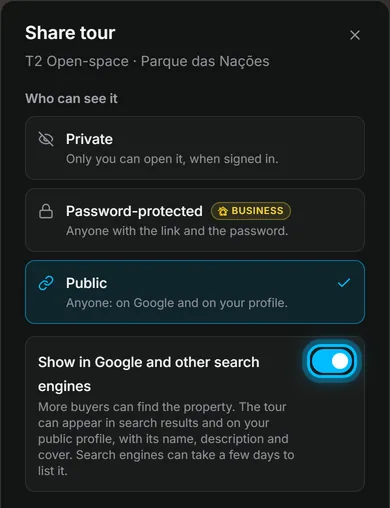
Result the tour opens for the people you chose, and the dialog shows its link, QR code and sharing options: see Send the tour: link, QR code, WhatsApp.
Protect a tour with a password
- Under Who can see it, choose Password-protected.
- Under Password, type a password you use nowhere else. The field tells you when it is long enough.
- Select Copy link and password and send both to the buyer.
Vistura saves the password but never shows it again. To give a new one, select Change password.
Make a tour private again
- Under Who can see it, choose Private.
Anyone who opens the link then sees This tour is private. Choose Public again to bring the tour back on the same link.
Who can see it
| Choice | Who can open it | Plan |
|---|---|---|
| Private | Only you, signed in to Vistura | Free |
| Public | Anyone, from Google and your public profile | Free |
| Public, with Show in Google and other search engines off | Only people with the link: only the people you send the link to | Pro |
| Password-protected | People with the link and the password | Business |
Was this helpful?
Thanks for telling us.
Sorry it did not help. Write to us and we will answer: support@vistura.app
More in this section: Publish and share
- Publish a tour and choose who can see it
- Send the tour: link, QR code, WhatsApp
- Put the tour on your website
- Make images for social media from your tour
- Bring buyers from property portals to your tour
- Your tour's address: short link, custom address, own domain
- Your public profile page
- Protect the owner's privacy
- Mark a property as sold
- Take a tour offline, or choose which tours stay online
- Delete a tour