Your tour's address: short link, custom address, own domain
- All plans
- Computer or phone
- Updated
Every Vistura tour has a short link, vistura.app/t/ followed by a code, on every plan. A custom address, with words you choose in place of the code, needs Pro or Business on your account. Your agency's own domain, such as tours.youragency.com, needs Business.
Before you start
The tour needs a link: in the Share dialog, choose Public or Password-protected. See Publish a tour and choose who can see it.
Steps
Choose a custom address
- Open the tour in the editor and select Share. On a phone, it is the share icon.
- Under the link, next to Address:, select Customise.
- Type the words that come after vistura.app/t/, for example the area and the type of home: riverside-2-bed-terrace. Vistura turns spaces and accents into plain letters and hyphens.
- When Available shows, select Use this address.
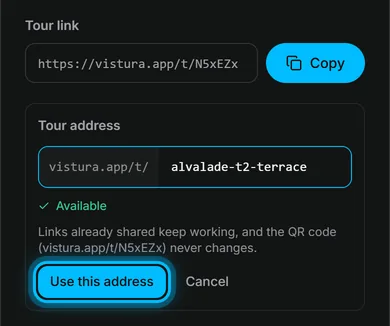
Links you already sent and the QR code keep working: they lead to the new address.
Connect your own domain
You need a subdomain of your agency's website, such as tours.youragency.com, and access to the place where the domain is managed: the company you bought it from, or the person who runs your website.
- On your dashboard, open Settings, then Brand & domain.
- Under Custom domain, type the subdomain and select Connect domain. Vistura shows two records under 1. Add these DNS records.
- Sign in where the domain is managed and open its DNS settings. They are often called DNS, DNS zone or DNS records.
- Add a record of type CNAME, with the name and the value Vistura shows under CNAME record. The copy button next to each one saves typing them.
- Add a record of type TXT, with the name and the value Vistura shows under Verification TXT record.
- Back in Vistura, select Verify now. While the page is open, Vistura also checks by itself.
- If Vistura then shows 2. Add the SSL records, add those TXT records the same way. They give the address its security certificate.
When the domain shows Active, your tours open on it. Its home page shows your agency and your public tours.
Give a tour its address on your domain
- In the editor, select Tour settings (the gear above the photo list), then Brand.
- Under Own domain, type the Address on your domain, such as riverside-2-bed. The full address shows under the field.
- Copy the full address from there, and send or paste it where you want buyers to open the tour on your domain.
A tour without one opens on your domain at /t/ followed by its code or its custom address. The Share dialog and its WhatsApp message give the address on your domain. The QR code keeps the short vistura.app link, which never changes.
Result buyers who open the address you copied see the tour on your domain, and every older link still works.
Was this helpful?
Thanks for telling us.
Sorry it did not help. Write to us and we will answer: support@vistura.app
More in this section: Publish and share
- Publish a tour and choose who can see it
- Send the tour: link, QR code, WhatsApp
- Put the tour on your website
- Make images for social media from your tour
- Bring buyers from property portals to your tour
- Your tour's address: short link, custom address, own domain
- Your public profile page
- Protect the owner's privacy
- Mark a property as sold
- Take a tour offline, or choose which tours stay online
- Delete a tour