Take a tour offline, or choose which tours stay online
- All plans
- Computer or phone
- Updated
To pause a listing without saying it sold, open the tour's menu on your Vistura dashboard and choose Take offline. Anyone who opens the link sees that the home isn't available right now, with a way to contact you. It works on every plan, on your phone or a computer.
Steps
- On your dashboard, find the tour under Your tours.
- Select Tour options (the … on the tour's card).
- Select Take offline.
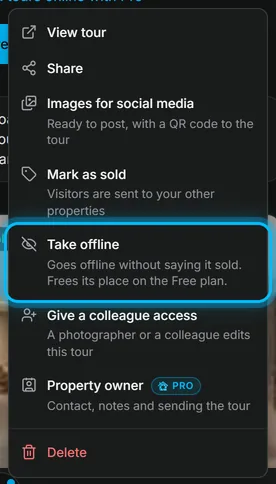
Result the card shows Offline. To bring the tour back, open the tour's menu again and select Put back online.
What buyers see while it is offline
- This home isn't available right now. Nothing is said about a sale.
- Your other homes for sale, when your public profile is public.
- Want to know more about this home?: a short form with Ask about this home. What they send arrives in Leads.
The tour also leaves search results and your public profile until you put it back online. You still open it yourself, signed in.
On Free: choose which tours stay online
Free keeps 3 tours online at a time, private ones included. To free a place, mark a tour as sold or take it offline, or move to Pro for unlimited tours. Sold tours and the example tour do not count.
When every place is taken and you create or send a new tour, Vistura shows Free plan limit reached.
You may also have more tours than that, for example when a paid plan ends or someone hands a tour over to you. Your dashboard then shows a notice with Choose the 3 online, and the tours above the limit show Offline · Free limit.
- On the notice, select Choose the 3 online.
- In Which listings stay online?, tick the tours that stay online, up to 3.
- Select Save my choice.
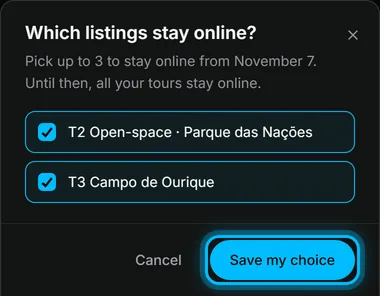
Result the tours you ticked stay online. Buyers who open the others see your contact and can leave an enquiry.
Your choice stays until you change it, so the links you put on portals keep opening the same tours. If you do not choose, Vistura keeps the tours with the most visits in the last 30 days.
When a paid plan is about to end, the same button is on the notice that tells you the date. You can choose ahead, and nothing goes offline before that date.
Was this helpful?
Thanks for telling us.
Sorry it did not help. Write to us and we will answer: support@vistura.app
More in this section: Publish and share
- Publish a tour and choose who can see it
- Send the tour: link, QR code, WhatsApp
- Put the tour on your website
- Make images for social media from your tour
- Bring buyers from property portals to your tour
- Your tour's address: short link, custom address, own domain
- Your public profile page
- Protect the owner's privacy
- Mark a property as sold
- Take a tour offline, or choose which tours stay online
- Delete a tour