Protect the owner's privacy
- All plans
- Computer or phone
- Updated
A Vistura tour shows buyers the area, not the street address, and every photo loses its location when you upload it. You can also keep the tour off search engines, blur faces and family photos, take the tour offline, and show the owner the numbers without any buyer's details.
Show the area, not the address
Buyers see the town and a point on the map near the home, never the street and number. Distances to shops and schools are rounded too, which keeps the exact place from showing. This is how every tour starts.
To check it:
- In the tour editor, open the photo list. On a phone, tap the panel button at the top left.
- Open the Property tab.
- Under Location, check that Show the exact address is off.
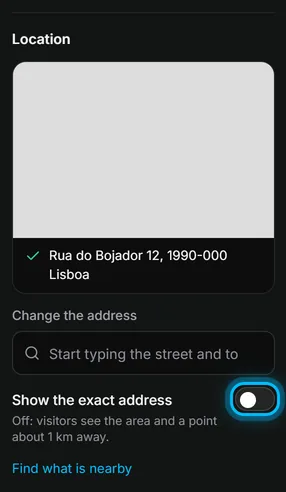
Result buyers see the area, and you still get the weather and what's nearby for the right place.
Keep the tour off Google
Keeping a public tour off Google and your public profile needs Pro or Business on your account. On Free, a public tour is listed, with the area and not the address; keep it Private until the owner agrees.
- Select Share at the top right. On a phone, it is the share icon.
- Under Who can see it, choose Public.
- Turn off Show in Google and other search engines.
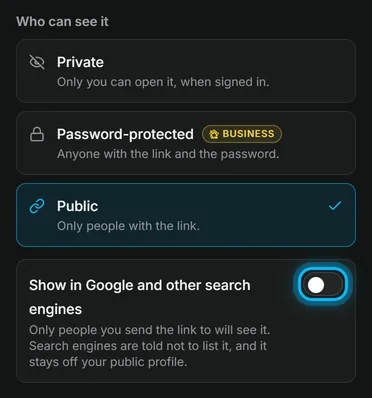
Only people you send the link to can open the tour. Search engines are told not to list it, and it stays off your public profile.
On every plan, Private keeps the tour for you alone while you prepare it. With Business, Password-protected asks buyers for a password before the tour opens.
The photo location is removed
Phones and cameras write the place where a photo was taken into the file. Vistura removes it, with the other camera data, from every photo, cover and floor plan you upload. Nothing to switch on.
The date and camera show to buyers only if you switch on Show photo details to visitors in the tour settings. It starts off.
To clean a photo before you send it anywhere else, use the free Photo metadata remover, which strips the location and camera data from a photo.
Blur faces and family photos
Use the free tool Blur faces in 360 photos on your phone or computer:
- Open the tool and choose the photo, a 360 photo or a normal one.
- Mark each face, family photo, letter or number plate with a box, a circle or the brush.
- Choose blur or pixelate, and download the photo.
The photo never leaves your device. Then add the new photo to your tour, or replace the old one: see Add, replace and download photos.
Take the tour offline when the owner asks
If the owner wants a break from visits, take the tour offline. Buyers who open the link see that the home isn't available right now, with a way to contact you, and nothing about a sale. See Take a tour offline, or choose which tours stay online.
Show the owner the numbers, not the buyers
In the tour's menu on your dashboard (Tour options, the … on the tour's card), Property owner > Invite the owner lets the owner follow the tour with a free account. This needs Pro or Business on your account. The owner sees how many people visited, where they came from, the rooms they looked at and how many enquiries arrived, but never who sent them. Visitors stay anonymous until they leave their details; then they are a lead in Leads. See Give the property owner access.
Was this helpful?
Thanks for telling us.
Sorry it did not help. Write to us and we will answer: support@vistura.app
More in this section: Publish and share
- Publish a tour and choose who can see it
- Send the tour: link, QR code, WhatsApp
- Put the tour on your website
- Make images for social media from your tour
- Bring buyers from property portals to your tour
- Your tour's address: short link, custom address, own domain
- Your public profile page
- Protect the owner's privacy
- Mark a property as sold
- Take a tour offline, or choose which tours stay online
- Delete a tour