Give the property owner access
- Plan: Pro
- Computer or phone
- Updated
In Vistura, you invite the property owner to follow their tour from Tour options (the … on the tour's card) > Property owner > Invite the owner. They see the tour and its numbers, read-only: visits, where they came from, the rooms people looked at and how many enquiries arrived, never who sent them. Owner access needs Pro or Business on your account, and it is free for the owner.
Steps
- On your dashboard, open the tour's menu, then select Property owner.
- Type the owner's Name and Email.
- Select Save.
- Under Owner access to the tour, select Invite the owner.
Result the owner gets an email. Once they accept, they show under Owner access to the tour with Follows the tour.
What the owner sees
The owner opens the link, signs in or creates a free Vistura account with that email, and selects Follow my property. Their dashboard then shows My properties, with:
- the tour, as you publish it, and a button to email you;
- the visits and enquiries of the last month;
- the tour's statistics: visits per day, where visitors came from, the rooms they looked at most and the rooms they liked.
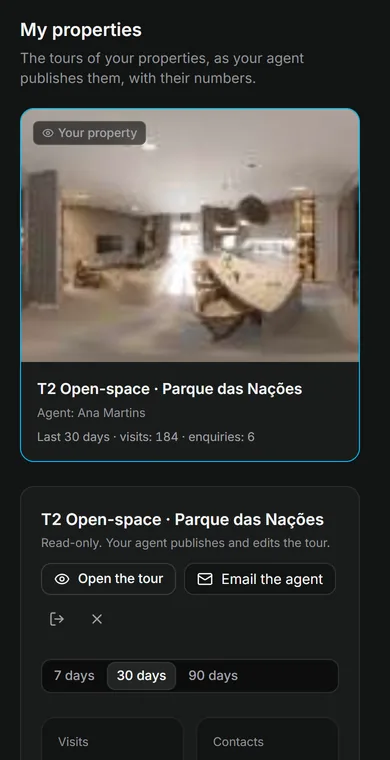
The owner never sees who the leads are: names, emails and phone numbers stay with you. They can't edit or publish the tour, and their own visits are not counted. They take no seat in your team.
Was this helpful?
Thanks for telling us.
Sorry it did not help. Write to us and we will answer: support@vistura.app