Set up an agency team
- Plan: Business
- Computer or phone
- Updated
A Vistura team is the agency's own space: every agent's tours and leads, under one brand. A team needs Business: you create the team and turn on Business in one step, from Create your agency’s team. Business includes 3 people, and you can add seats.
Steps
Create the team
- At the top of your dashboard, select the space menu: the button that shows Personal or your team's name (on a phone it shows only the mark).
- Select Create your agency’s team.
- Type the Agency name. A logo and a colour are optional, and you can change them later.
- Under People on the team, choose how many people the team needs.
- Choose monthly or yearly, then select Continue to payment and pay.
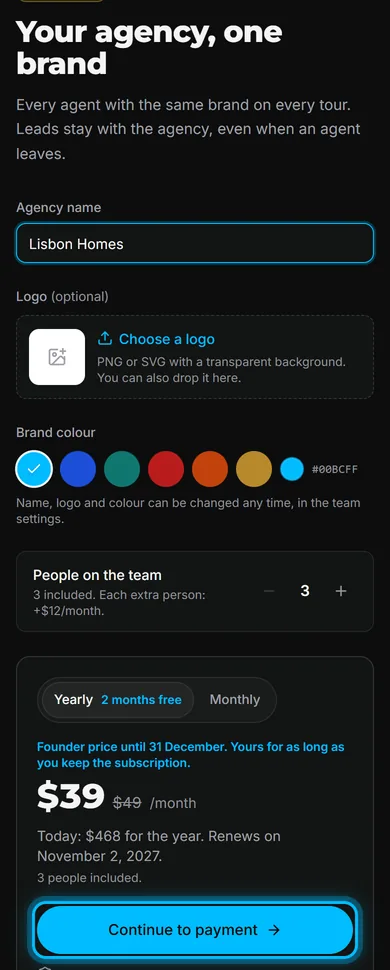
Once paid, the page offers to invite the team and bring your listings. You can do both now or later.
Invite the agents by email
- Switch to the team's space with the space menu.
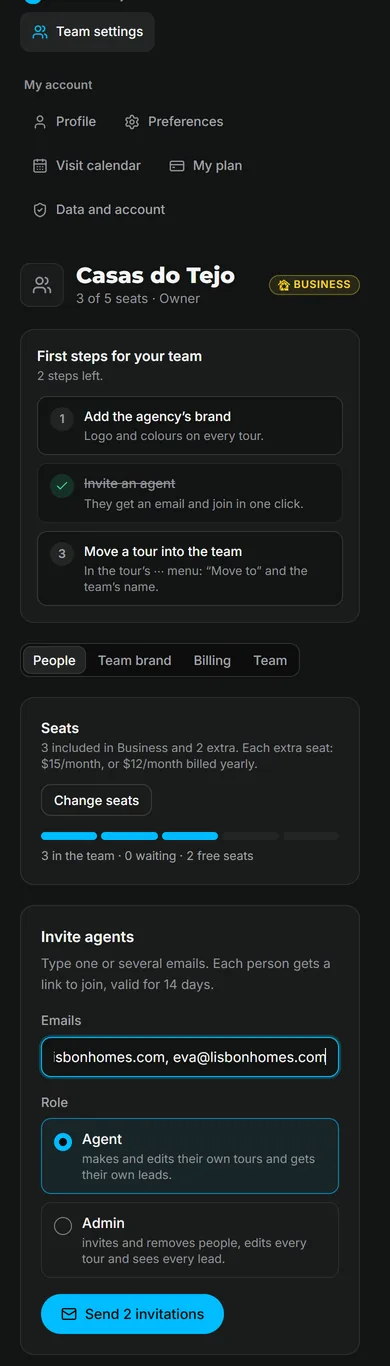
- Select Settings > Team settings > People.
- Under Invite agents, type one or more emails, separated by commas.
- Choose the Role, then select Send invitation.
Each person gets an email with a link to join.
Invite with a code
- In People, under Join with a code, select Create a code.
- Show the QR code in a meeting, or select Copy link and send the link in the agency's group chat.
- When someone asks to join, select Approve next to their name in People.
People who join with a code join as agents. What the agent does on their side is in Join your agency's team, and give a tour to an agent.
Bring your tours into the team
- On the dashboard, in your personal space, select Tour options (the … on the tour's card).
- Select the option that moves the tour to your team (it shows the team's name).
- Confirm.
The tour's link and QR code stay the same. Its leads go with it.
Result the team's tours show the agency's brand, and each lead goes to the agent in charge of the tour.
Who does what
| Role | What they do |
|---|---|
| Owner | Pays for the plan, manages seats and can delete the team |
| Admin | Invites and removes people, edits every tour and sees every lead |
| Agent | Makes and edits their own tours and gets their own leads |
Everyone in the team sees the team's tours. Admins set the agency's logo and colours in Team brand; they replace each agent's own brand on every team tour.
Billing and seats
- Invoices and card: Team settings > Billing > Invoices and card. Only the owner sees this tab.
- More people: in People, under Seats, the owner selects Change seats. Today you pay only for the days until the next invoice.
- A payment fails: the team keeps working for 14 days. The owner selects Update the card in the notice.
Was this helpful?
Thanks for telling us.
Sorry it did not help. Write to us and we will answer: support@vistura.app