Join your agency's team, and give a tour to an agent
- Plan: Business
- Computer or phone
- Updated
In Vistura, an agent joins the agency's team from the email invitation or with the team's code. The team then sits in the space menu next to your own tours, and an admin can give each tour to an agent. Teams need Business on the team's plan.
Before you start
You need a Vistura account: see Sign in and set up your profile. The team needs a free seat for you.
Steps
Join from the email invitation
- Open the link in the invitation email.
- Sign in, or create your account, with the address the email was sent to.
- Check the team's name and your role, then select Join the team.
Join with the team's code
- On your dashboard, open the space menu: the button at the top of the dashboard that shows Personal or your team's name. On a phone it shows only the mark.
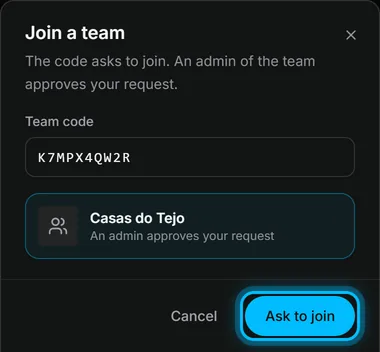
- Select Join a team.
- Type the code an admin gave you under Team code. The team's name shows once the code is complete.
- Select Ask to join.
Approve an agent who asked to join (admins)
- In the team's space, open Settings, then Team settings, then People.
- In the list of people who ask to join, select Approve next to the person you know.
Result the team appears in the agent's space menu. You will see the team's tours and get the leads of the tours assigned to you. Your personal tours stay yours.
Give a tour to an agent (admins)
- In the team's space, find the tour on your dashboard.
- Select Tour options (the … on the tour's card), then Assign to an agent.
- Under Agent, choose the agent.
- Select Assign to an agent.
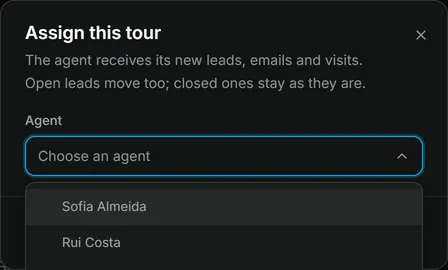
Result The agent receives its new leads, emails and visits. Open leads move too; closed ones stay as they are.
Was this helpful?
Thanks for telling us.
Sorry it did not help. Write to us and we will answer: support@vistura.app