Sign in and set up your profile
- All plans
- Computer or phone
- Updated
You sign in to Vistura with Continue with Google or with your email and a password, on your phone or a computer. Your photo, cover and a few lines about you go in Settings > Profile. It works on every plan.
Steps
Create your account
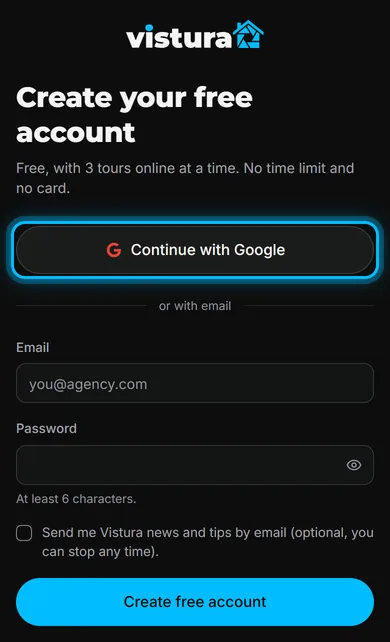
- Open vistura.app/signup. The screen says Create your free account.
- Select Continue with Google and pick your Google account, or type your email and a password of at least 6 characters and select Create free account.
- With email, open the link Vistura sends you to activate the account.
Sign in next time
- Open vistura.app/login.
- Select Continue with Google, or type your email and password and select Sign in. If you created the account with Google, sign in with Google.
Set up your profile
- On your dashboard, select Settings, then Profile.
- Select Edit profile.
- Select the camera on the round photo to choose your photo.
- Select Change cover to choose a wide cover picture. Both take JPEG or PNG.
- Fill in Name, Username and About you.
- Under Contact details on your public profile, add your agency, role and area, and the phone, WhatsApp, email and website buyers should use. Only what you fill in is shown.
- Select Save changes.
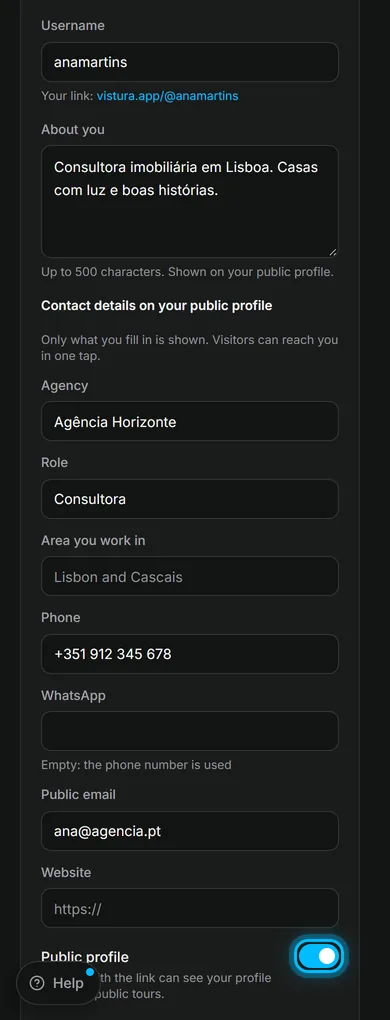
Result your photo, name and contact details appear on your public profile. Your agent card in new tours uses these details.
Was this helpful?
Thanks for telling us.
Sorry it did not help. Write to us and we will answer: support@vistura.app