Hand over a tour to another account
- All plans
- Computer or phone
- Updated
In Vistura, you hand a tour over to another account from Tour options (the … on the tour's card) > Give a colleague access > Hand over to another account. The tour, its link, leads and statistics go to that account once they accept. It works on every plan, for example to deliver a tour to the agency that ordered it.
Steps
- On your dashboard, open the tour's menu, then select Give a colleague access.
- At the bottom of the window, under Hand over to another account, select Hand over….
- Type the Email of the account that receives it.
- Keep Keep editing access ticked if you may need to replace photos later. Untick it to let the tour go completely.
- Select Send request.
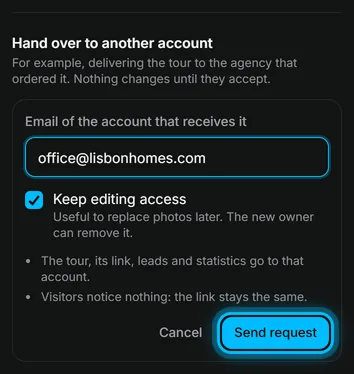
The window then shows that you are waiting for that account to accept. Nothing changes until they do, and you can select Cancel request at any time before.
What the other account does
- They open the link in the email, or select View on the notice at the top of their dashboard.
- If they belong to a team, they choose under Where it goes: Personal or the team.
- They select Accept the tour.
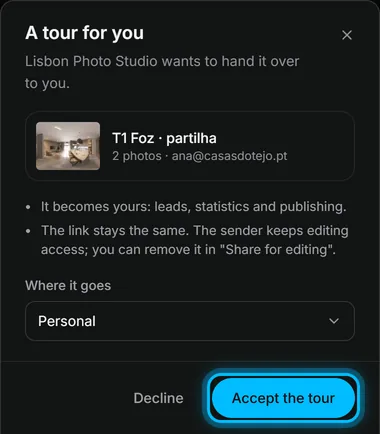
Result the tour is theirs, with all its leads and statistics. Buyers notice nothing: the link stays the same. If you kept editing access, the tour shows on your dashboard under Shared with you.
Was this helpful?
Thanks for telling us.
Sorry it did not help. Write to us and we will answer: support@vistura.app