Blur faces and private details in 360 photos
Hide faces, number plates, family photos and documents in a 360 photo or a listing photo before the home goes online. Free, no account, and the photo stays on your device.
Your photo stays on your deviceFree, no accountUpdated
Drop your 360 or listing photo here
A 360 photo or an ordinary listing photo, as JPEG, PNG or WebP. It is read on this device and never uploaded.
To blur a face in a photo, choose the photo here, then draw a box or an ellipse over the face, or paint over it with the brush. It is hidden at once: drag the area to move it, pull a corner to resize it, and undo any step. The same blurs a number plate (license plate), a family photo on the wall, a letter on the table or any part of an image. Choose Blur or Pixelate and how strong. On a 360 photo you can also look around in the 360 view and hide what is in the circle; an area runs across the photo's left and right edges and over the ceiling or the floor without a seam. The download keeps the photo's size, and a 2:1 360 photo its 360 metadata. The photo never leaves your device.
Made by Vistura, the virtual tour platform for estate agents
| Photos | One photo at a time: a 360 photo up to 16,384 pixels wide or a listing photo up to 100 megapixels, as JPEG, PNG or WebP. |
|---|---|
| Marking | Rectangle, ellipse or brush, as many areas as you need. Each one can be moved and resized, with the mouse, a finger or the keyboard, and every step undone. |
| Effect | Blur or Pixelate, strength 1 to 10, scaled to each area. At 10, a number plate becomes three or four blocks from top to bottom. |
| 360 photos | Areas cross the left and right edges and cover the ceiling and the floor correctly. In the 360 view you hide what is in the circle where you look. |
| Output | The photo at its own size and orientation. A 2:1 360 photo keeps its 360 metadata; a flat PNG up to 16 megapixels stays a PNG, anything else is a JPEG at high quality. No location, date or camera data. |
| Privacy | Runs on your device: the photo is not sent anywhere (Privacy policy). |
| Price | Free: no account, no Vistura mark on your photo. |
What Vistura does with a photo like this
Vistura is virtual tour software for real estate. The tools are free; the tours are what we sell.
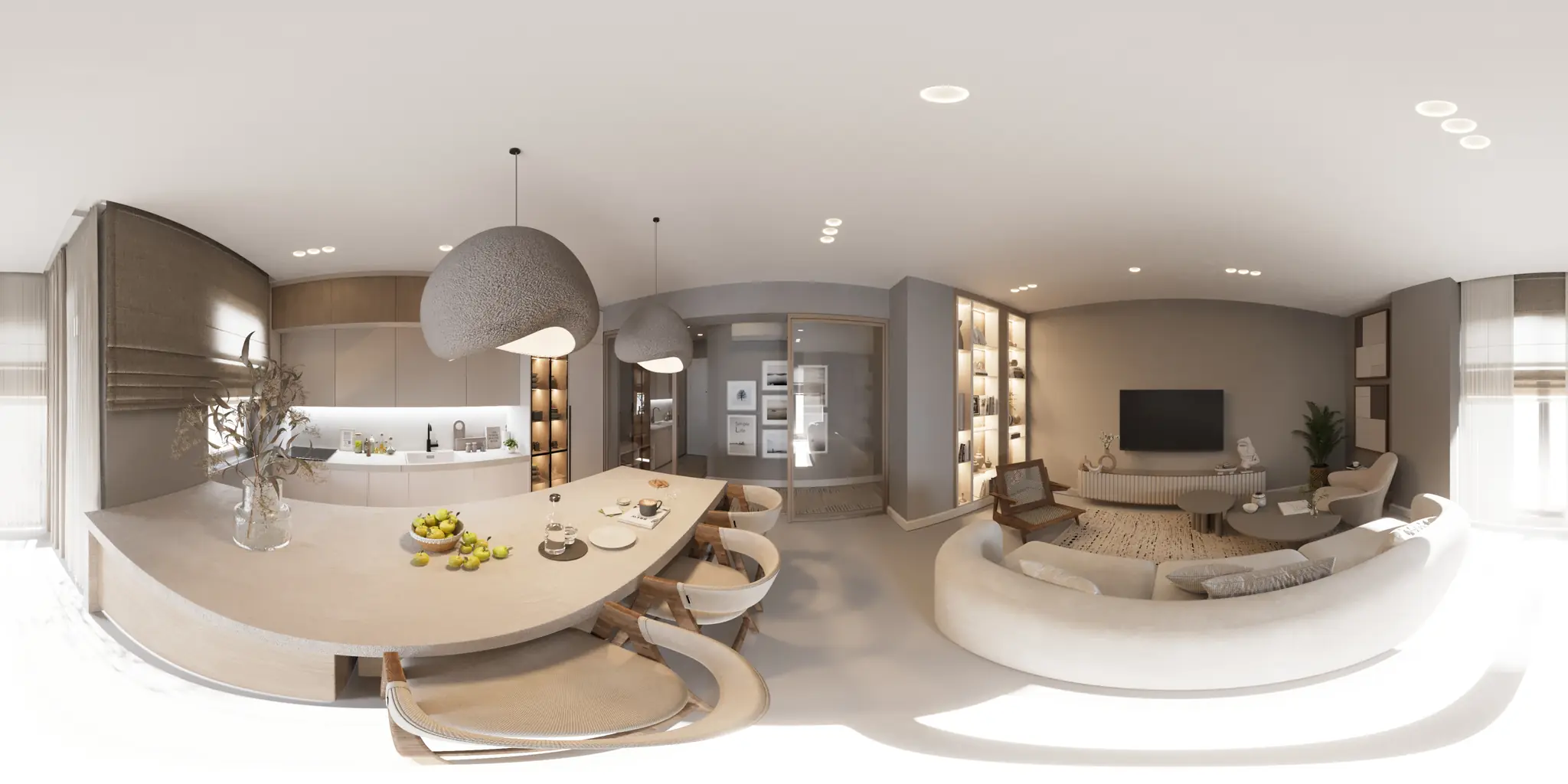
One 360 photo per room. 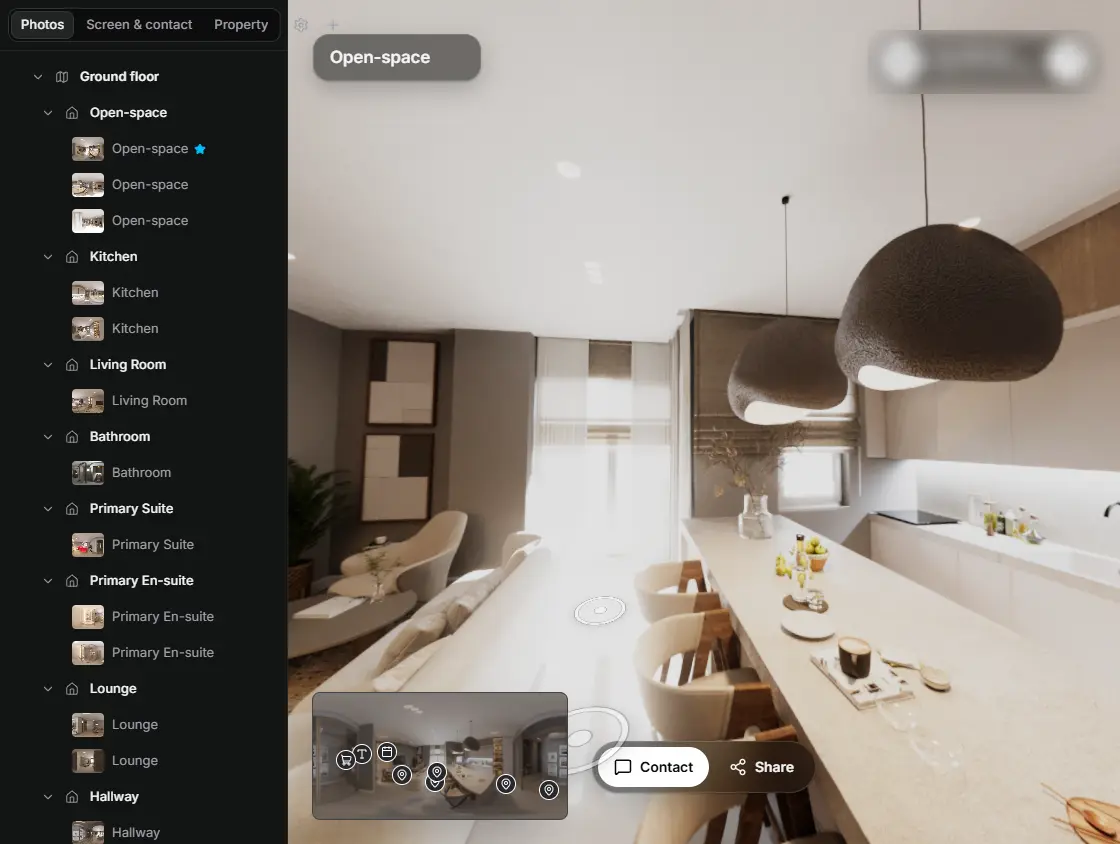
In the editor, drag a room onto its doorway and the two rooms are linked. 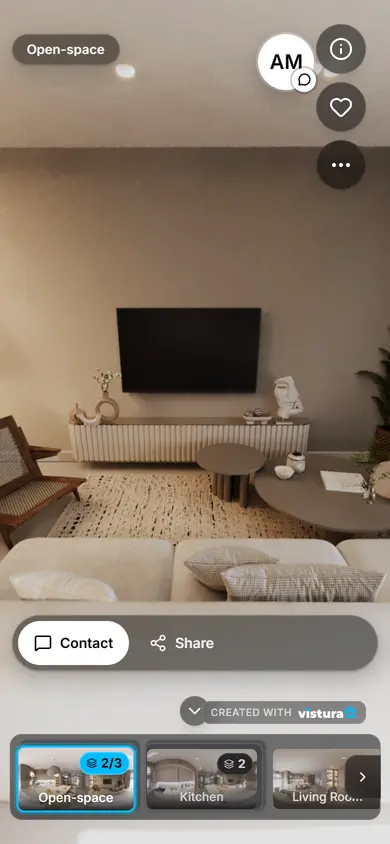
Buyers open the link on any phone, walk from room to room and can send you a question from inside the tour.
Free plan: 3 tours online at a time, with Vistura branding. Pro: unlimited tours online, with your own logo and colours.
How do I blur a face or a number plate in a photo?
- Choose the photo: a 360 photo of a room or an ordinary listing photo, on a phone or a computer.
- Mark what to hide: drag a rectangle over a number plate or a document, an ellipse over a face, or paint with the brush over something with an odd shape. A tap makes an area of a useful size where you tap.
- Adjust it: drag an area to move it, pull a corner to resize it, or use the arrow keys and + and -. Undo takes back the last step.
- Choose Blur or Pixelate and the strength. The photo on screen shows the result as it will download.
- Download: the photo comes out at its own size, with the areas hidden and no location data.
Blurring a 360 photo
A 360 photo is a whole room in one picture, and its left and right edges are the same place. A face or a frame on that spot is cut in two on the flat photo. Here an area that runs off one edge carries on at the other, and the blur joins without a line, so nothing shows when someone turns round in the tour.
Near the ceiling and the floor a 360 photo is stretched sideways. The blur and the blocks are sized as they are seen in the room, so a spot over the floor or a light on the ceiling is hidden evenly all round, whatever the stretching.
The easiest way to find things in a 360 photo is to look round it: open the 360 view, turn until what you want to hide is in the circle, set the circle's size and hide it. A 2:1 360 photo keeps its size and its 360 metadata, and opens as a 360 photo in a Vistura tour and in 360 viewers that read it.
What to hide before a listing goes online
- Faces: the owners, their children, a tenant or a neighbour in a doorway, and the photographer in a mirror. In a 360 photo the camera sees every direction at once.
- Family photos and personal things: frames on the walls and shelves, children's names on a bedroom door, certificates, religious or medical items the owners would rather keep private.
- Documents and screens: letters and bills on a table, a calendar, a whiteboard, a laptop or a TV showing someone's account.
- Number plates: the owners' car in the drive or the garage, and cars parked in the street outside.
- Clues to the home's security: an alarm panel with its code, keys on a hook, a safe.
Privacy and the GDPR
A listing is public: anyone can save its photos, and a 360 photo shows every corner of a room. Hiding the owners' faces and personal things protects them from being recognised by strangers, and buyers look at the home rather than at the people who live in it.
In the EU, a photo in which a person can be recognised can count as personal data under the GDPR. Hiding faces and number plates before you publish keeps them out of the listing. For what applies to your own listings, ask your agency or your data protection adviser.
Blur or pixelate: which hides better?
A light blur over small text can sometimes be read back, and blocks that are too small can still give away a plate. This tool starts both effects from blocks, each one a single average colour of the pixels under it, so the detail is taken out of the file rather than softened. Blur then smooths the blocks so the area looks calm; Pixelate shows them.
The block size follows each area's size, so the same strength hides a small plate and a large frame equally well. For number plates, documents and screens, use strength 9 or 10.
How to avoid it next time you shoot
- Before you start, walk through the home and put away family photos, letters, bills and anything with a name on it. Close laptops and turn off screens.
- Ask the owners and anyone else to leave the room. Most 360 cameras can be started from an app, a remote or a timer: use it to leave the room before the photo is taken.
- Look at mirrors, windows and glass doors from the camera's place: they show the photographer and what is outside.
- Move cars out of the drive, or shoot the outside when the street is quiet.
- Check each 360 photo by turning all the way round before you leave the room. Anything you missed, you hide here.
Questions
Is my photo uploaded?
No. The photo is opened and blurred in this page, on your device. Nothing is sent to Vistura or anywhere else.
Can someone undo the blur on the downloaded photo?
The downloaded photo has no original under the blurred areas: the detail there is replaced with blocks of one average colour each, then smoothed for Blur. Your original file is not changed, so keep it private.
Does a 360 photo still work in a virtual tour?
Yes. A 2:1 360 photo keeps its size and its 360 metadata, so it opens as a 360 photo in a Vistura tour and in 360 viewers that read it. The blur runs across the photo's left and right edges without a line.
Does it lower the quality or change the size of my photo?
The photo keeps its width, height and orientation, and only the areas you mark change. A flat PNG up to 16 megapixels stays a PNG; anything else is written as a JPEG at high quality.
Is it better to blur or pixelate a number plate?
Both hide it here, because both start from blocks. Pixelate at strength 9 or 10 is the clearest sign to a viewer that the plate was hidden on purpose; Blur looks softer in a listing photo.
My iPhone saves HEIC photos. Do they work?
Use JPEG, PNG or WebP. When you choose a photo from an iPhone's library in Safari, it usually arrives as a JPEG. To take JPEGs from the start: Settings > Camera > Formats > Most Compatible.
Your next listing, as a tour
One 360 photo per room, linked together, shared in one link.
Free plan: 3 tours online at a time, with Vistura branding. Pro: unlimited tours online, with your own logo and colours.