360 photo to video
Turn your 360 photo into a short video that pans round the room, ready for Reels, TikTok and Stories: free, no sign-up, made on your device.
Your photo stays on your deviceFree, no accountUpdated
Drop your 360 photo here
The 2:1 photo your 360 camera exports, as JPEG, PNG or WebP.
No 360 photo yet? Make one with your phone
To turn a 360 photo into a video, open it here, frame the first view, choose a shape (9:16 for Reels, TikTok and Stories, 1:1 or 16:9) and a length from 10 to 30 seconds, and tap Make the video. Vistura's free tool turns the camera once round the room from that view and saves an MP4 that loops, made by your browser from the full-resolution photo. Post it like any other video: Instagram and TikTok show a 360 photo as a flat picture, but they play a video.
Made by Vistura, the virtual tour platform for estate agents
| Files | 360 photos (equirectangular, 2:1) as JPEG, PNG or WebP, up to 16,384 x 8,192 pixels. |
|---|---|
| Video | MP4 (H.264), 30 frames a second, without sound: 9:16 at 1080 × 1920, 1:1 at 1080 × 1080 or 16:9 at 1920 × 1080. |
| Motion | One full turn round the room in 10, 15, 20 or 30 seconds, to the left or right, starting from the view you frame. The end meets the start, so it loops. |
| Browsers | A recent Chrome, Edge or Safari, on a computer or a phone. |
| Privacy and price | On your device: nothing is uploaded unless you start a tour with it, and nothing is kept after you close the page. Free, no account, no watermark. |
What Vistura does with a photo like this
Vistura is virtual tour software for real estate. The tools are free; the tours are what we sell.
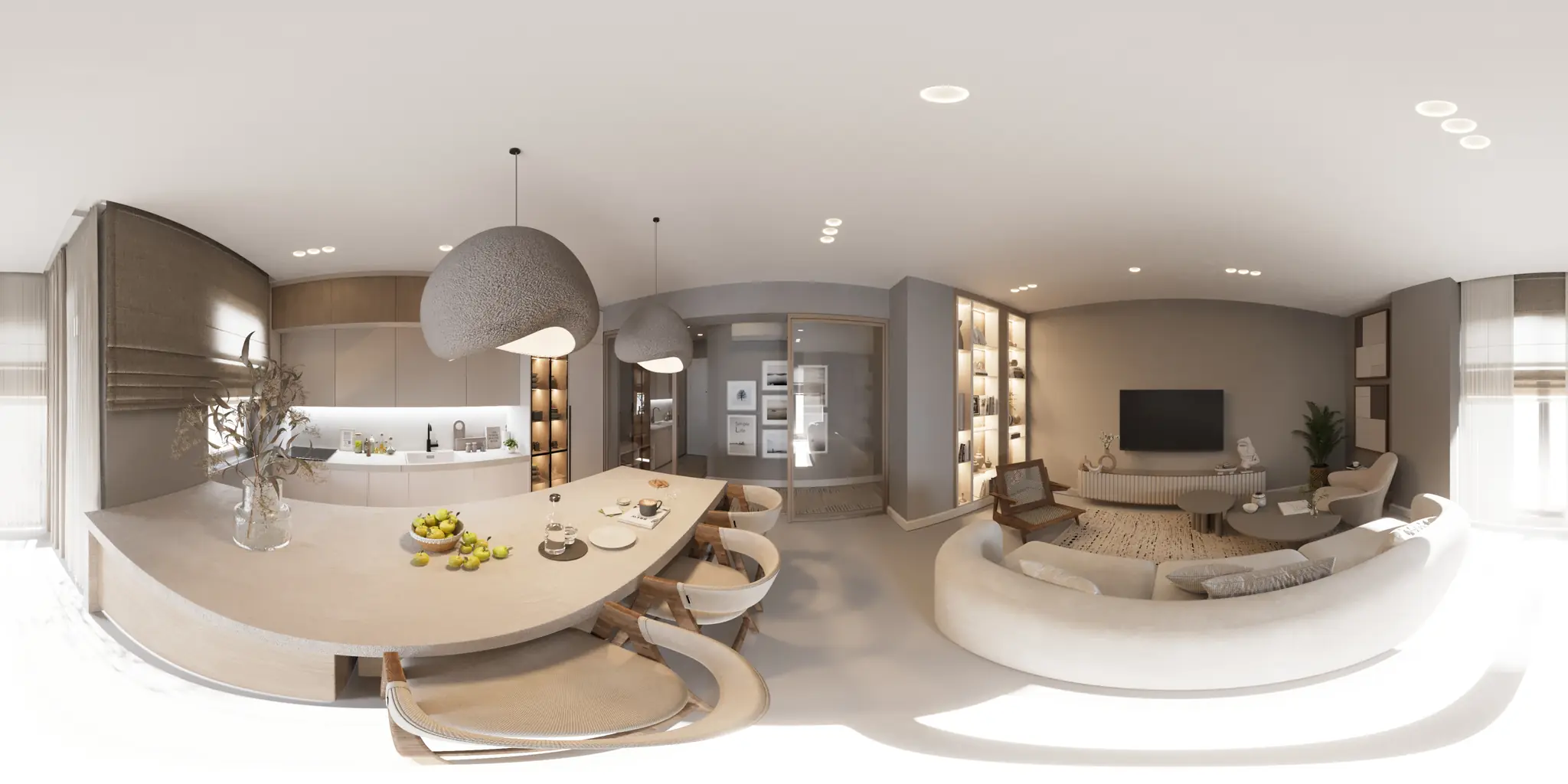
One 360 photo per room. 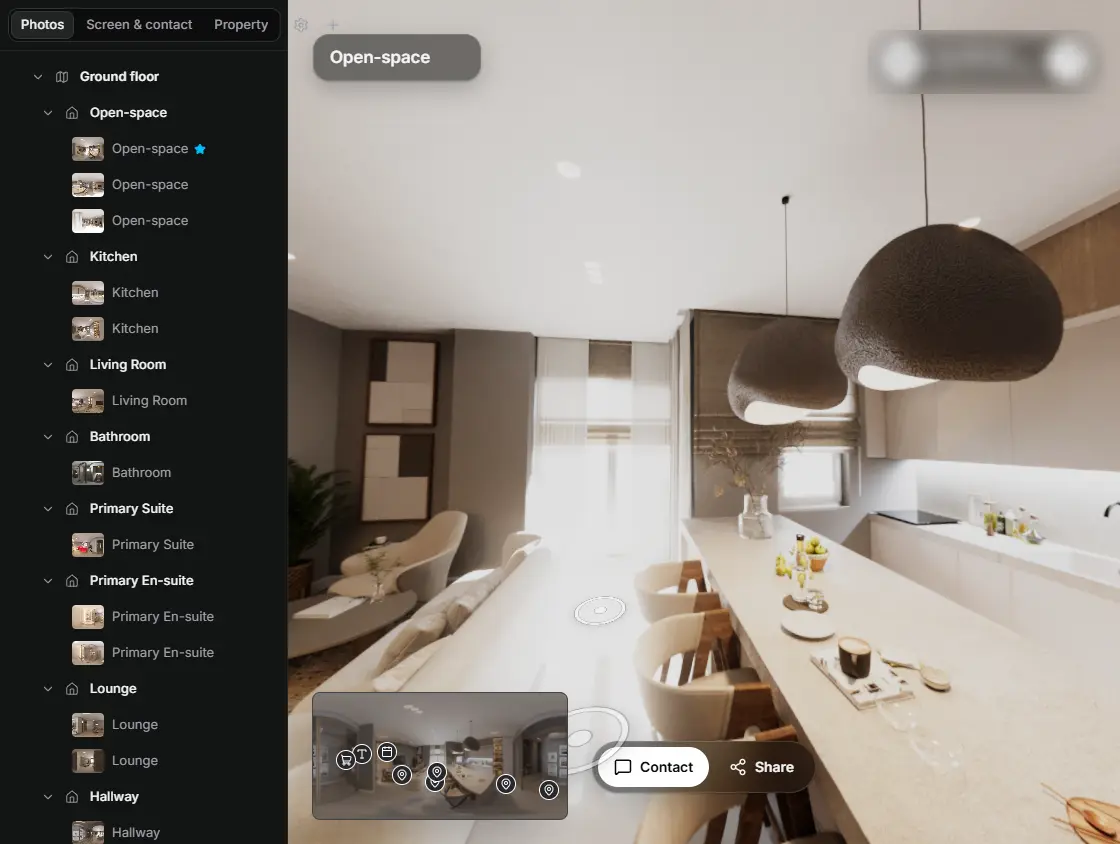
In the editor, drag a room onto its doorway and the two rooms are linked. 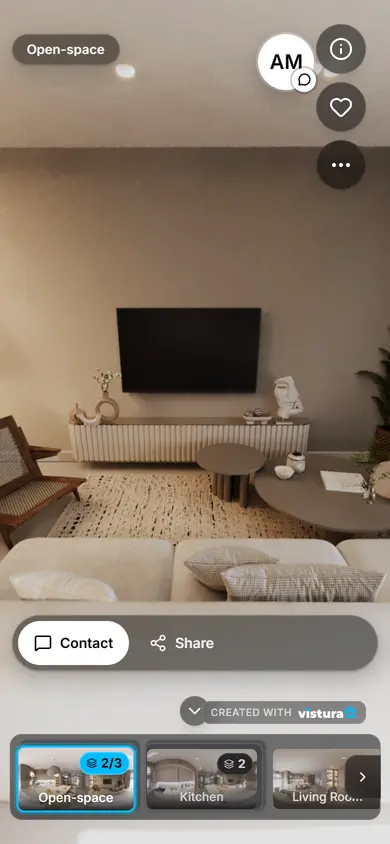
Buyers open the link on any phone, walk from room to room and can send you a question from inside the tour.
Free plan: 3 tours online at a time, with Vistura branding. Pro: unlimited tours online, with your own logo and colours.
How do I turn a 360 photo into a video?
- Open the 360 photo: drop it on the tool or choose it. It opens in a 360 view.
- Choose the shape: 9:16 for Instagram Reels, TikTok and Stories, 1:1 for square posts, 16:9 for YouTube and websites.
- Frame the first view: drag to turn, scroll or pinch to zoom. What is inside the blue frame is where the video starts, and how wide it looks.
- Choose the length and the direction, then tap Make the video. The bar shows how far it has got.
- Watch the preview, then tap Download the video. Change any setting and make it again as often as you like.
Why make a video from a 360 photo?
Instagram, TikTok and most social apps show a 360 photo as a flat, stretched picture: the room is there, but nobody can look around it. A video that turns round the room shows the whole space in a few seconds, and Reels and TikTok put short vertical videos in front of people beyond your followers.
The video also loops: the last frame meets the first, so a Reel that plays again keeps turning without a jump.
Which shape and length?
Length sets the speed: the video always makes one full turn, so 10 seconds turns briskly and 30 seconds glides. 15 to 20 seconds suits most rooms.
| Shape | Size | Use it for |
|---|---|---|
| 9:16 | 1080 × 1920 | Instagram Reels and Stories, TikTok, YouTube Shorts, WhatsApp Status. |
| 1:1 | 1080 × 1080 | Square posts in the Instagram and Facebook feeds. |
| 16:9 | 1920 × 1080 | YouTube, websites, property portals that take video, screens in the office window. |
How do I post it on Instagram or TikTok?
- Move the MP4 to your phone as a file, by AirDrop, a cable or a cloud drive, or make it on the phone itself.
- In Instagram, tap + and Reel, and choose the video; in TikTok, tap + and Upload.
- Add music and text in the app: the video has no sound, so any track fits.
- Put the link to the full tour in your bio or in a link sticker on a Story, and point to it in the caption, for the people who want to look around themselves: a link typed into an Instagram or TikTok caption cannot be clicked.
How do I make better videos next time?
- Straighten the photo first: a tilted horizon rocks up and down as the video turns. Straighten the 360 photo, then make the video.
- Cover the tripod: the floor shows at the bottom of a 9:16 video. Hide the tripod before you make it.
- Start on the best view: the first frame is the one people see in the feed before the video plays.
- Keep the view level: looking up or down while turning makes the walls lean and sway.
Questions
Is my photo uploaded?
No. The 360 photo is opened in this page, on your device, and the video is made here by your browser. Nothing goes to Vistura or anywhere else, and nothing is kept after you close the page; it is uploaded only if you choose “Start a tour with this photo”.
Is it free? Is there a watermark?
Free, with no account and no watermark. Make as many videos as you like.
Which browsers can make the video?
A recent Chrome, Edge or Safari, on a computer or a phone. The tool says so at once if the browser you use cannot make the video.
Does the video have sound?
No, so you can add any music in Instagram or TikTok without it clashing.
Can I make a video of a whole home?
One video per 360 photo: make one for each room and join them in Instagram's or TikTok's editor, or any video editor. To let buyers walk from room to room themselves, put the photos in a virtual tour.
Which 360 cameras does it work with?
Any camera or app that exports a 360 photo in the 2:1 equirectangular shape: Insta360, Ricoh Theta, Kandao, Trisio, phone apps such as Vistura Capture, and stitching software.
Your next listing, as a tour
One 360 photo per room, linked together, shared in one link.
Free plan: 3 tours online at a time, with Vistura branding. Pro: unlimited tours online, with your own logo and colours.