Straighten a crooked 360 photo
Straighten a crooked 360 photo in your browser, automatically or by hand. Free, no sign-up, and the photo never leaves your device.
Your photo stays on your deviceFree, no accountUpdated
Drop the crooked 360 photo here
A 360 photo from any 360 camera or app: JPEG, PNG or WebP, twice as wide as it is tall, up to 16384 × 8192.
No 360 photo yet? Make one with your phone
Vistura's free tool straightens a 360 photo with a crooked horizon in your browser, without uploading it. It finds the room's vertical lines, such as door frames and wall corners, and turns the photo until they stand upright, or you level it by hand. No sign-up, and the download keeps full resolution and the 360 metadata. No PTGui, Photoshop or Affinity needed.
Made by Vistura, the virtual tour platform for estate agents
| Opens | JPEG, PNG or WebP 360 photos (2:1) up to 16384 × 8192 |
|---|---|
| Cube maps | Turn them into a 360 photo first with Cubemap to 360 photo |
| Automatic straightening | Finds the vertical lines (door frames, wall corners) in 8 views around the horizon and levels tilts of up to about 10 degrees |
| By hand | Tilt left or right, tilt forward or back and turn the starting view, with a grid to check; the way to level gardens, beaches and tilts of up to 15 degrees |
| Output | A new high-quality JPEG (quality 92) at the photo's full resolution, nothing cropped or stretched, with 360 (GPano XMP) metadata; the original's GPS location and camera data are left out |
| Privacy | Straightened on your device, in this page; nothing is uploaded or kept unless you start a tour with the photo (Privacy policy) |
| Works on | Any recent browser, on a computer or a phone; nothing to install |
| Price | Free: no account, no watermark, no limit |
| Languages | English, Portuguese, Spanish, German, French, Italian, Dutch |
What Vistura does with a photo like this
Vistura is virtual tour software for real estate. The tools are free; the tours are what we sell.
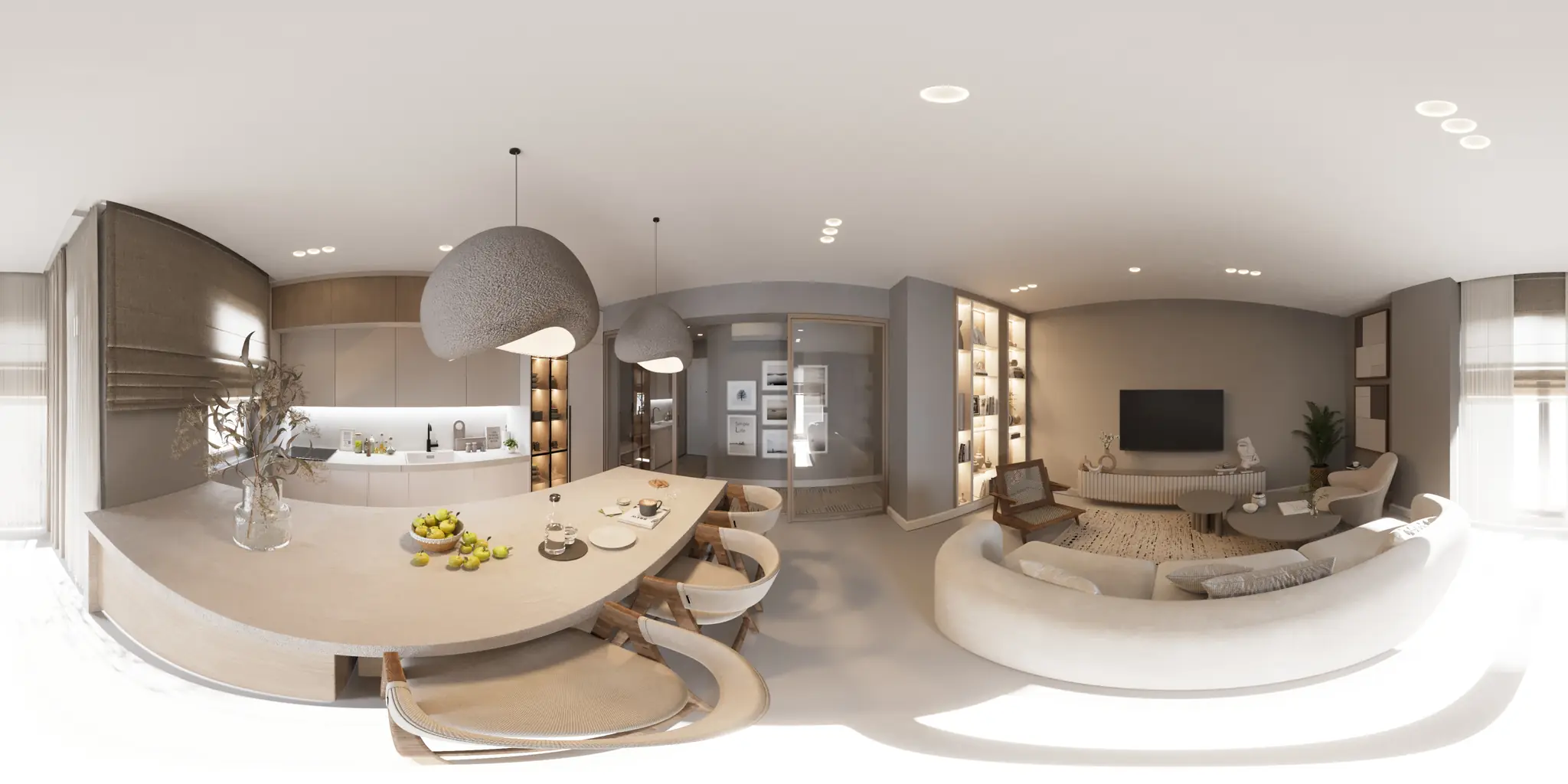
One 360 photo per room. 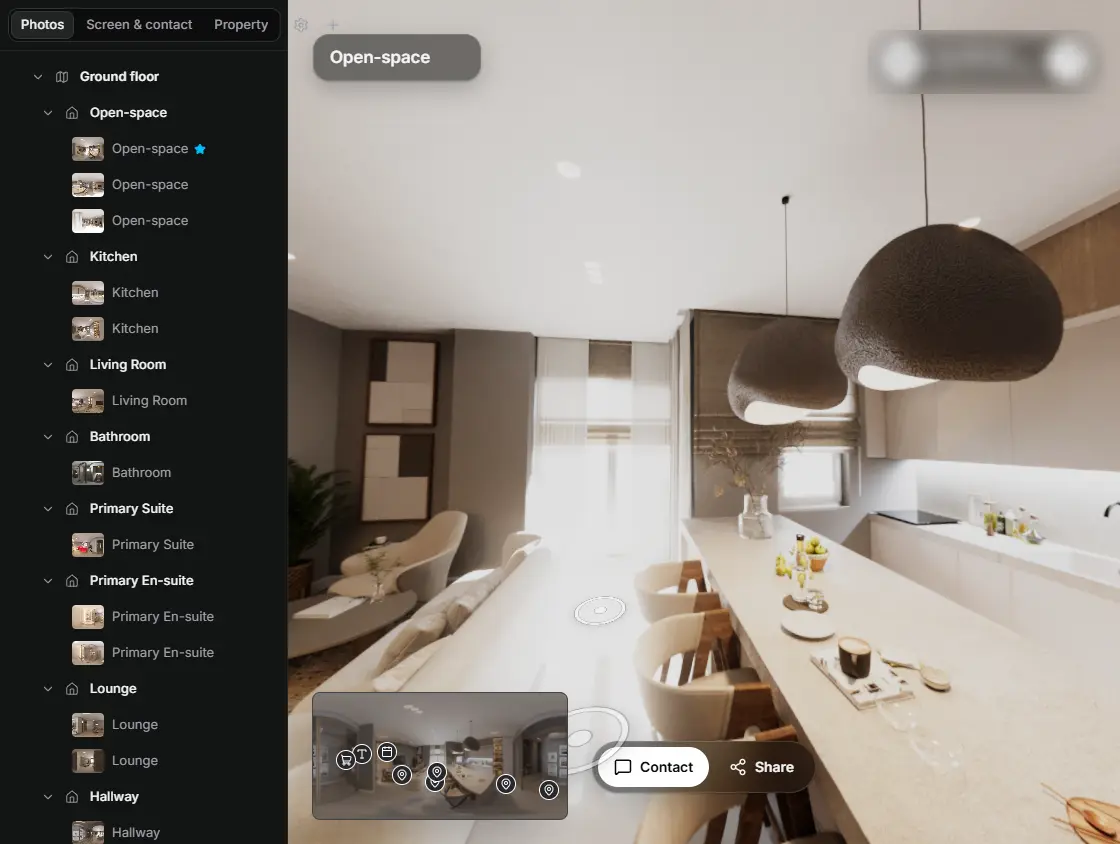
In the editor, drag a room onto its doorway and the two rooms are linked. 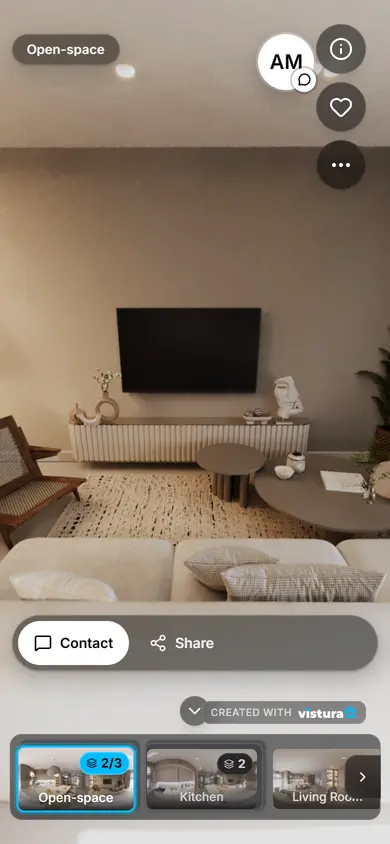
Buyers open the link on any phone, walk from room to room and can send you a question from inside the tour.
Free plan: 3 tours online at a time, with Vistura branding. Pro: unlimited tours online, with your own logo and colours.
How to straighten a 360 photo in 5 steps
- Open the photo: drop it on the box above or press “Choose a 360 photo”. No photo to hand? Try the sample photo.
- Press “Straighten it”: the tool checks the horizon as the photo opens and says how many degrees it leans. One press levels it.
- Check it against the grid: look straight ahead; a door frame or a wall corner should run along a grid line.
- Fine-tune by hand: under “Adjust by hand”, move “Tilt left or right” and “Tilt forward or back”. Under “Starting view”, choose where the photo opens.
- Download it: press “Download the straight photo”. You get a JPEG at full size that 360 viewers and tour software open as 360.
Why do 360 photos come out crooked?
A 360 photo comes out level only when the camera stood perfectly upright. Two or three degrees off is enough: the walls lean, and as you turn around, the horizon climbs on one side of the room and sinks on the other. The usual causes:
- An uneven tripod: one leg shorter than the others, a sloping floor, a thick rug or a loose head.
- The camera's sense of up: the app joins the shots using motion sensors that drift a little as the camera moves, and the photo keeps the error.
- A tilted stick or hand: the camera was held at an angle, so the whole sphere is turned.
How does the automatic straightening work?
Rooms are full of lines that should be vertical: door frames, wall corners, the sides of cupboards. The tool looks at your photo in 8 views around the horizon, finds those lines and works out where true up is. Then it turns the whole sphere until up points straight up again.
Nothing is cropped or stretched: every pixel moves to its new place, at full resolution.
The sliders are the better tool when the photo has no clear vertical lines (a garden, a beach) or leans by more than about 10 degrees. The tool tells you so and opens “Adjust by hand” for you.
Can I change where the photo starts?
Yes. Every 360 photo has a front: the view people see first. Often it is a blank wall, or wherever the camera happened to point. Move “Turn the starting view”, under “Starting view”, and the room turns around you, sideways only, so the horizon stays level.
Stop when what buyers should see first, such as the front door, is straight ahead in the view the photo opened on (if you have dragged around, drag back first). Then download.
The turn is written into the file: your starting view becomes the centre of the photo, where 360 viewers and tours open it by default.
Straighten first, then remove the tripod
Straightening turns the whole sphere, the floor included, so a tripod patch added first would end up off-centre, no longer right under you. Level the photo here, download it, then cover the tripod in the straight file.
Tripod showing at the bottom? Now that the photo is straight, cover the tripod with a nadir patch.
The straight photo is saved without its GPS location. Before you publish the listing's other photos, remove the GPS location from them too.
How to shoot a level 360 photo next time
- Level the tripod in every room: a bubble level on the tripod head, or the level in your camera's app if it shows one.
- Use the camera's own correction: if your 360 camera's app offers horizon correction (some call it zenith or top and bottom correction), turn it on.
- Keep the stick upright: on a monopod or selfie stick, let the camera hang level instead of leaning it towards the room.
- Check the first room before the rest: when one room leans, the others usually do too.
- No 360 camera: Vistura Capture turns your phone into a 360 camera, in the phone's browser, with nothing to install. Capturing is free; a free account lets you download the photo or add it to a tour.
Do I need PTGui or Affinity Photo?
Not for the levelling. When we checked in October 2026, the top search results for straightening a 360 photo were guides for desktop programs: PTGui, Affinity Photo, Hugin and GIMP.
If your file is already a 360 photo, twice as wide as it is tall, this page levels it in your browser, free, from the room's own vertical lines: nothing to install, the photo stays on your device and the download carries the 360 metadata.
Questions
Is it still a 360 photo after straightening?
Yes. The download is written with the 360 (GPano) metadata that 360 viewers and tour software look for, so it opens as a 360 photo straight away, with nothing to inject afterwards. To see it the way a buyer will, open it in the 360 photo viewer.
Where is the photo straightened, and does it cost anything?
In this page, on your device. The photo is not sent to Vistura or anywhere else, and nothing is kept once you close the page; it is uploaded only if you choose “Start a tour with this photo”. It is free, with no account, no watermark and no limit on how many photos you straighten.
When is it better to straighten by hand?
When the photo has few clear vertical lines, such as a garden or a beach, or leans by more than about 10 degrees. Look straight ahead with the grid on, then move “Tilt left or right” and “Tilt forward or back” until a door frame, a wall corner or a post runs along a grid line.
Does the photo keep its quality?
It keeps its full resolution, with nothing cropped or stretched, and is saved as a new high-quality JPEG. The original's GPS location and camera data stay out of the new file, which is one step less before you publish it.
Can I make the photo open on the front door?
Yes. Under “Starting view”, move “Turn the starting view” until the front door is straight ahead in the view the photo opened on, then download. The door becomes the centre of the file, so 360 viewers and tours open the photo facing it.
Your next listing, as a tour
One 360 photo per room, linked together, shared in one link.
Free plan: 3 tours online at a time, with Vistura branding. Pro: unlimited tours online, with your own logo and colours.