Instagram carousel splitter
Cut a panorama or a 360 photo into slides that swipe as one picture, and post the whole room on Instagram: free, no sign-up, and the photo stays on your device.
Your photo stays on your deviceFree, no accountUpdated
Drop your panorama or 360 photo here
A phone panorama, a wide photo or the 2:1 photo your 360 camera exports, as JPEG, PNG or WebP.
No 360 photo yet? Make one with your phone
To split a panorama for an Instagram carousel, open it here: the preview shows the photo cut into slides, with a line where each swipe goes. Choose portrait (4:5) or square slides and how many, from 2 to 10, and tap Save the slides. Vistura's free tool writes numbered JPEGs of 1,080 pixels wide on your device, in a ZIP or one at a time. A 360 photo is unrolled so the walls stand straight and the carousel goes once round the room, the last slide joining the first.
Made by Vistura, the virtual tour platform for estate agents
| Files | Wide photos and panoramas, at least about 1.3 times as wide as tall, and 360 photos (equirectangular, 2:1) up to 16,384 × 8,192 pixels, as JPEG, PNG or WebP. |
|---|---|
| Slides | 2 to 10, portrait 1,080 × 1,350 pixels (4:5) or square 1,080 × 1,080, as JPEG. |
| 360 photos | Unrolled round the camera with straight walls; you choose where the first slide starts and move the horizon up or down. |
| Saving | A ZIP of numbered slides, each slide on its own, or, on a phone, the share sheet. No location or camera data in the slides. |
| Privacy and price | On your device: nothing is uploaded unless you start a tour with a 360 photo, and nothing is kept after you close the page. Free, no account, no watermark. |
What Vistura does with a photo like this
Vistura is virtual tour software for real estate. The tools are free; the tours are what we sell.
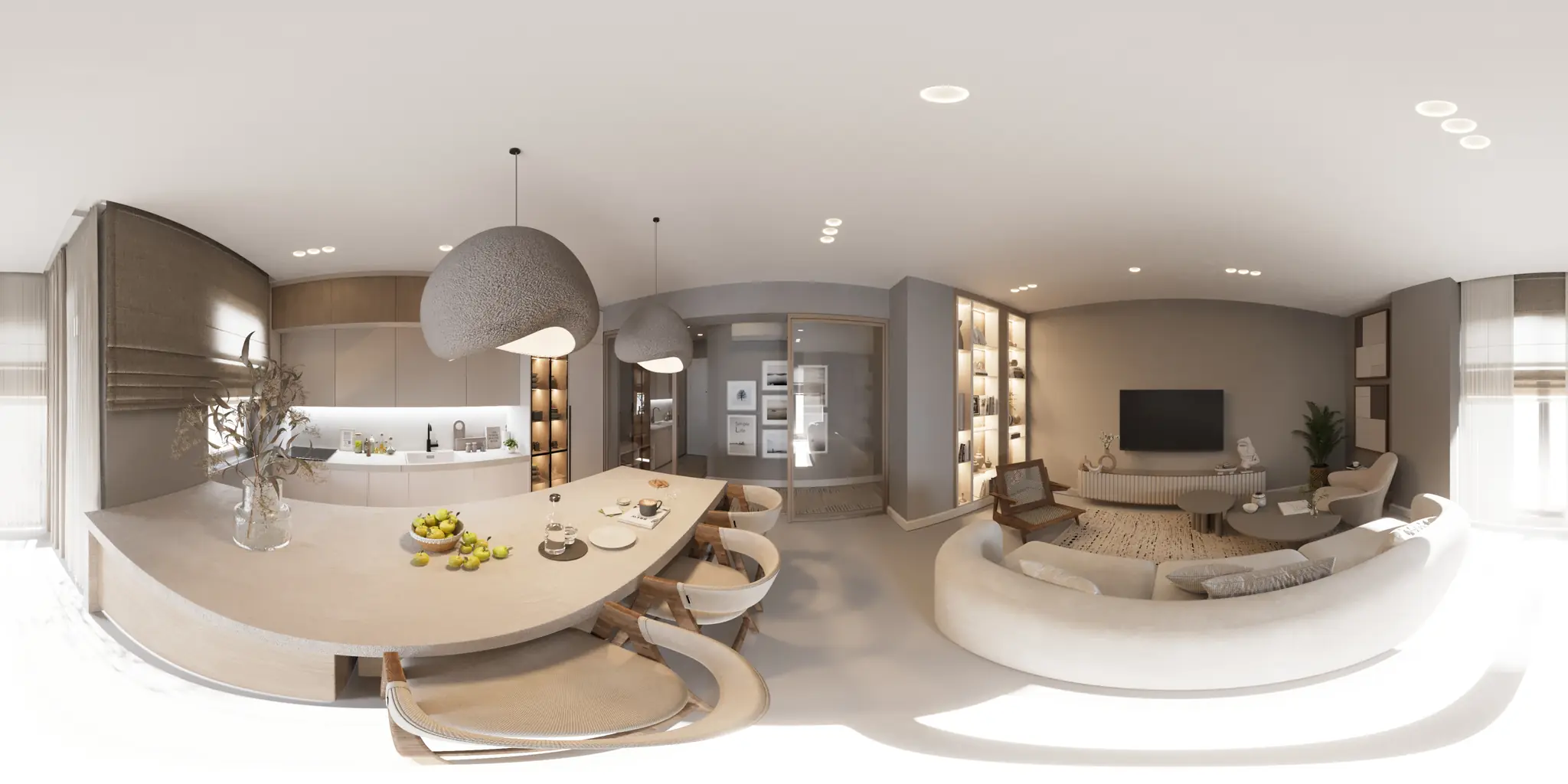
One 360 photo per room. 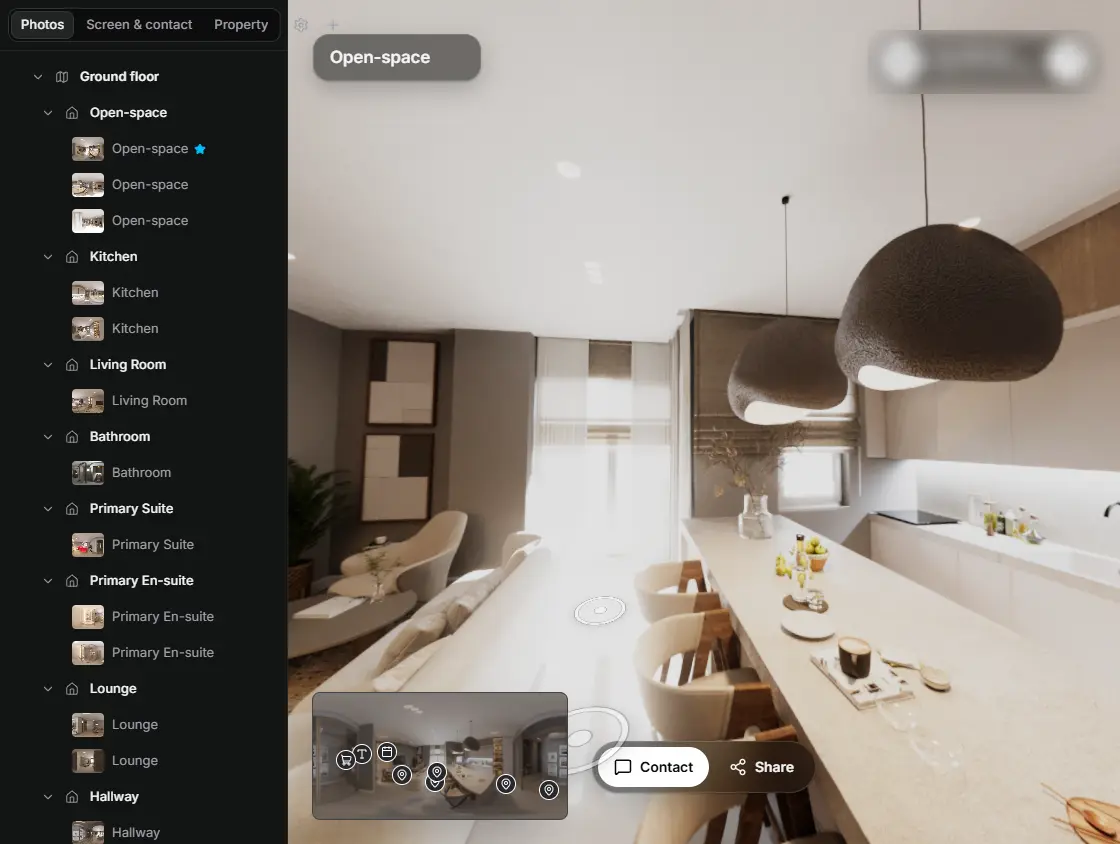
In the editor, drag a room onto its doorway and the two rooms are linked. 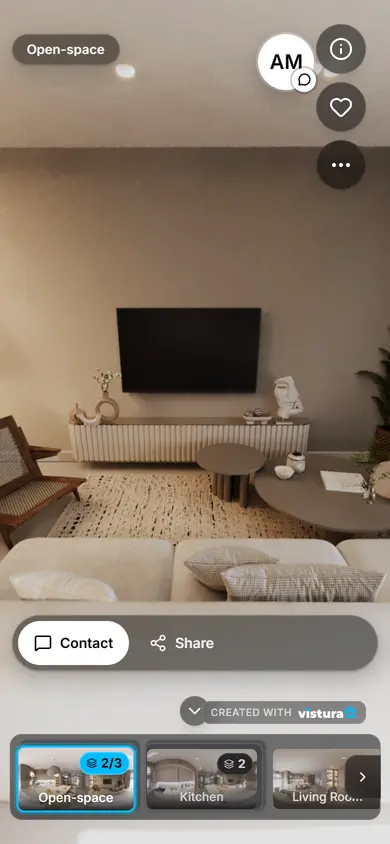
Buyers open the link on any phone, walk from room to room and can send you a question from inside the tour.
Free plan: 3 tours online at a time, with Vistura branding. Pro: unlimited tours online, with your own logo and colours.
How do I split a panorama into an Instagram carousel?
- Open the photo: drop it on the tool or choose it. A phone panorama, a wide landscape or a 360 photo all work.
- Pick the shape: portrait (4:5) fills more of the screen in the feed, square (1:1) shows a wider strip.
- Pick how many slides. For a flat panorama the tool starts with the number that keeps the most of it; more slides keep more of the sides, fewer keep more of the height.
- For a 360 photo, drag the preview sideways until the first slide starts where you want, often the door or the best view, and move the horizon if the floor or ceiling matters more.
- Tap Save the slides. The numbered JPEGs come in a ZIP; on a phone you can save each one, or share them all to your photos.
How do I post it so the slides join up?
- In Instagram, start a new post and choose several photos. Pick the slides in order: 1 first, then 2, 3 and on.
- Keep every slide at the same size. If Instagram offers to crop, keep the 4:5 or 1:1 the slides already have, or the edges will no longer meet.
- Leave filters off, or put the same one on every slide, so the colours match where the slides meet.
- Say in the caption that the post swipes, and put the tour link in your bio for the full walk-through.
What changes with a 360 photo?
A 360 photo holds every direction round the camera. Cut straight, its walls would bend, so the tool unrolls it onto a cylinder round the camera: vertical lines stay vertical, and the slides together go once round the room. The last slide ends where the first begins, so a swipe through the post walks round the whole space.
The floor straight below and the ceiling straight above do not fit a strip, so the slides show the band round the horizon. The line under the preview says how far up and down they reach; fewer slides reach further, and the horizon slider moves the band towards the floor or the ceiling.
Which photos make the best carousels?
- A level photo: a tilted horizon climbs or falls from slide to slide. Straighten the 360 photo first.
- Rooms with something in each direction: a window, the kitchen, a door to the terrace. A blank wall makes a dull slide.
- Enough detail: each slide is 1,080 pixels wide, so a panorama or 360 photo of at least 1,080 pixels wide per slide stays sharp.
- Start with the strongest view: the first slide is the one people see first.
Questions
Is my photo uploaded?
No. The photo is opened in this page, on your device, and the slides are made here too. Nothing goes to Vistura or anywhere else, and nothing is kept after you close the page; a 360 photo is uploaded only if you choose “Start a tour with this photo”.
Is it free? Is there a watermark?
Free, with no account and no watermark. Make as many carousels as you like.
Which size are the slides?
1,080 pixels wide: 1,080 × 1,350 for portrait (4:5) or 1,080 × 1,080 for square (1:1), saved as JPEG.
How many slides can I make?
From 2 to 10. For a flat panorama the tool suggests the number that keeps the most of the photo; you can change it, and the crop follows.
Why do the slides not join up in my post?
Most often the slides were picked out of order, or Instagram cropped them. Pick them in the order of their numbers and keep the shape the slides already have.
Does it work on a phone?
Yes, in a recent Chrome, Safari, Firefox or Edge. On a phone, save the slides one at a time or share them to your photos, then pick them in Instagram.
Can I use it for Facebook or LinkedIn?
Yes: the slides are ordinary JPEGs, so you can add them to a post with several photos on Facebook or LinkedIn. The edge-to-edge swipe is made for Instagram's carousel.
Your next listing, as a tour
One 360 photo per room, linked together, shared in one link.
Free plan: 3 tours online at a time, with Vistura branding. Pro: unlimited tours online, with your own logo and colours.