Brighten dark real estate and 360 photos
Dark rooms brightened without burning out the windows, and yellow light taken out, on all the photos of a listing at once and on 360 photos too. Free, no account, and the photos stay on your device.
Your photos stay on your deviceFree, no accountUpdated
Drop your dark listing photos here
One photo or all the photos of a listing: room photos or 360 photos, as JPEG, PNG or WebP. They are read on this device and never uploaded.
To brighten a dark listing photo, choose it here (or all the photos of the home at once). Auto does what a real estate photo editor does first: it reads the photo's histogram, raises the exposure, lifts the shadows, holds the windows back so they do not burn out, adds a little contrast and takes the yellow of indoor bulbs out gently. Drag the line across the photo to compare before and after, and move the brightness, shadows, highlights, warmth and vibrance sliders if you want more or less. Each photo gets its own Auto, and your sliders apply to all of them. A 360 photo is brightened the same way everywhere, so its left and right edges still meet without a seam, and it keeps its size and 360 metadata. The photos never leave your device.
Made by Vistura, the virtual tour platform for estate agents
| Photos | Listing photos and 360 photos as JPEG, PNG or WebP, several at once: ordinary photos up to 100 megapixels, 360 photos up to 16,384 pixels wide. |
|---|---|
| Auto | Read from each photo's histogram: exposure, shadows, highlights, a little contrast and vibrance, and white balance against yellow or blue light. |
| Sliders | Brightness, shadows, highlights, warmth and vibrance, from −100 to +100. With Auto on they move each photo's Auto result; the same values go on every photo. |
| 360 photos | The same adjustment on every pixel, so the left and right edges still match. Before and after in a 360 view. The photo keeps its 360 metadata and opens as a 360 photo in a Vistura tour and in 360 viewers that read it. |
| Output | Each photo at its own size and orientation. A flat PNG up to 16 megapixels stays a PNG; anything else is a JPEG at high quality. No location, date or camera data in the new files. |
| Privacy | Runs on your device: no photo is sent anywhere (Privacy policy). |
| Price | Free: no account, no Vistura mark on your photos, no limit on how many. |
What Vistura does with a photo like this
Vistura is virtual tour software for real estate. The tools are free; the tours are what we sell.
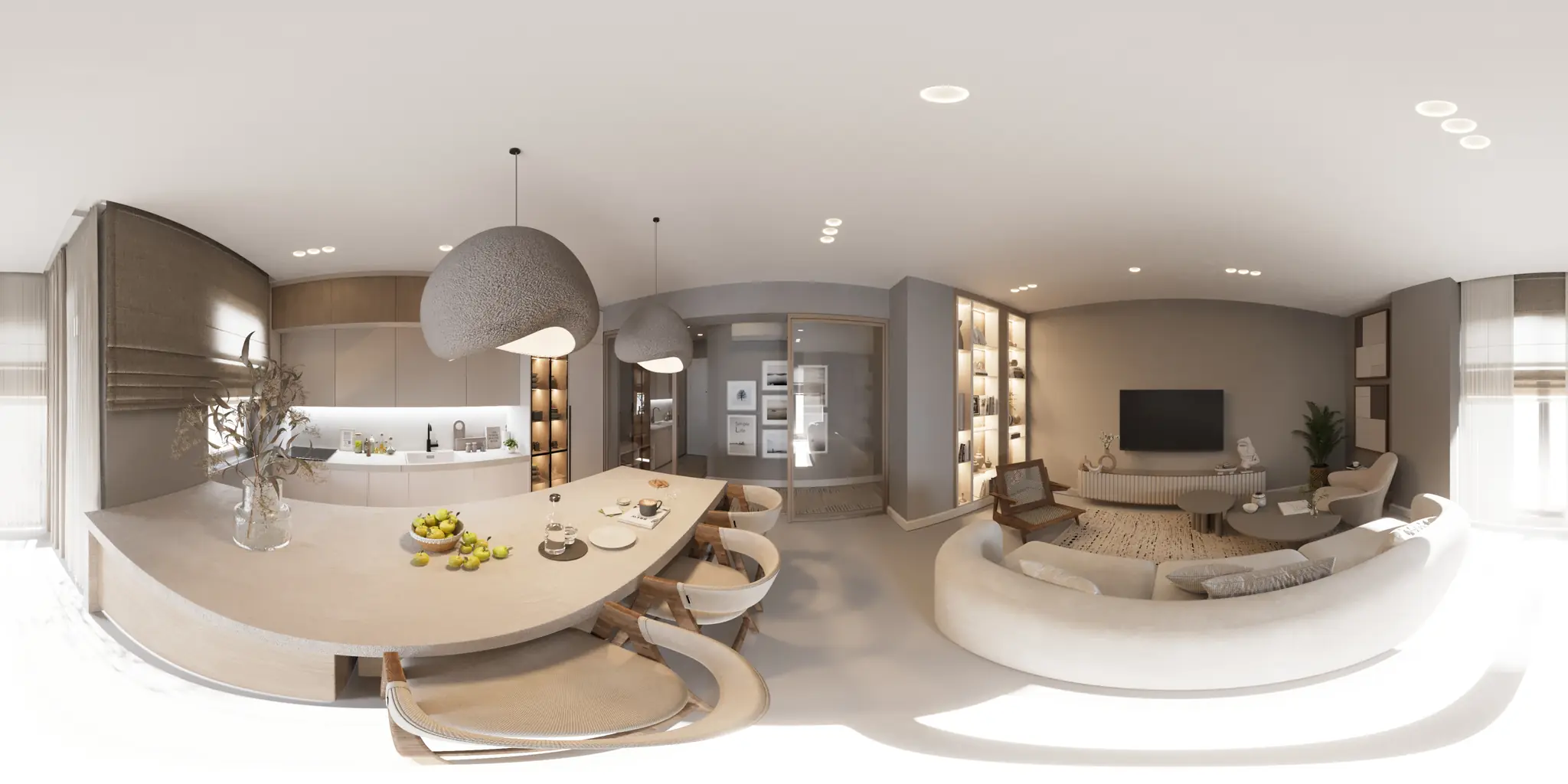
One 360 photo per room. 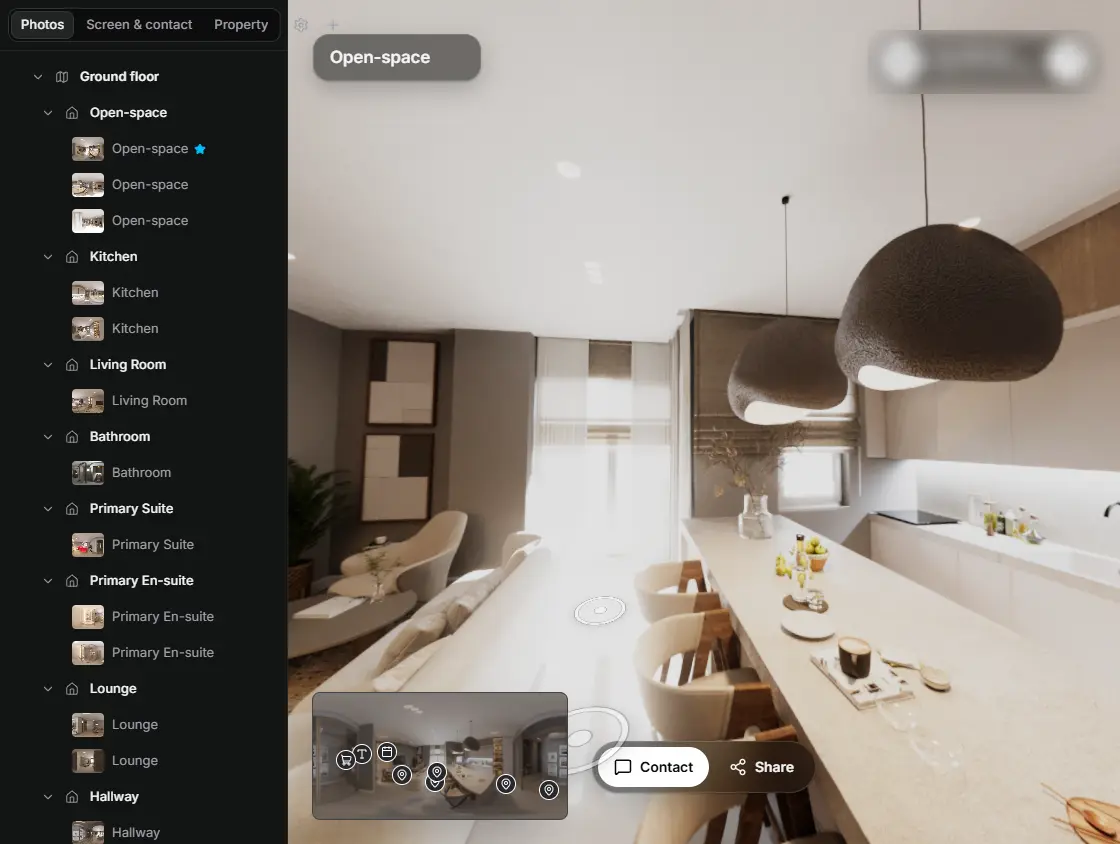
In the editor, drag a room onto its doorway and the two rooms are linked. 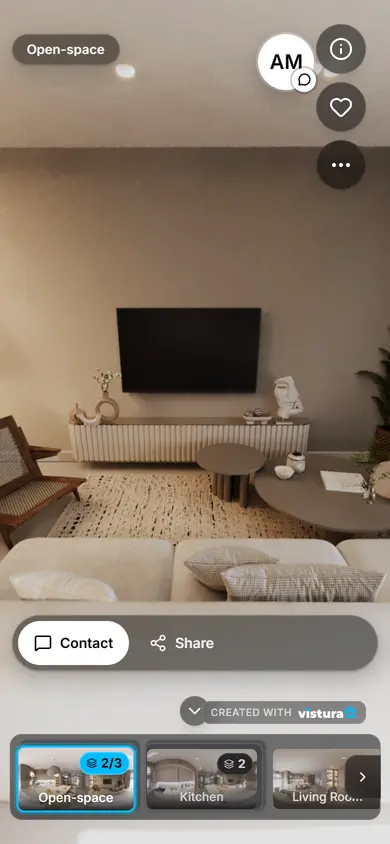
Buyers open the link on any phone, walk from room to room and can send you a question from inside the tour.
Free plan: 3 tours online at a time, with Vistura branding. Pro: unlimited tours online, with your own logo and colours.
How do I brighten a dark listing or 360 photo?
- Choose your photos: one room or every photo of the listing, on a phone or a computer. 360 photos can be in the same set.
- Look at Auto's result: it is on from the start. Drag the line across the photo to see before and after.
- Adjust if you want: Brightness for the whole photo, Shadows for dark corners, Highlights to bring a bright window back, Warmth for yellow or blue light, Vibrance for dull colours.
- Check the others: the arrows show each photo of the set with its own Auto and your sliders.
- Download: one photo comes as a single file; several come in a ZIP, and you can also save them one by one.
Why rooms come out dark
The window is the brightest thing in most rooms, often many times brighter than the walls. The camera sets one exposure for the whole scene, the bright window pulls it down, and the room around the window falls into shadow. That is why a living room with a big window can look like it was shot at night.
Indoor light is also weaker than it looks to the eye, and it is mixed: blue daylight from the window, yellow light from bulbs and lamps. The camera picks one colour balance for the whole photo, so the walls turn yellow or orange, or the window turns blue.
Auto works on both: it raises the room's exposure while it holds the brightest parts back, and it takes some of the yellow out without making a warm room look cold.
Brightening 360 photos
A 360 photo has one more rule: its left and right edges are the same place in the room, and a viewer joins them. A tool that brightens each part of the photo differently can leave a visible line where they meet. This tool applies one adjustment to every pixel, the same at the left edge as at the right, so the seam stays invisible.
Choose the 360 view above the photo to look around before and after. The download keeps the photo's size and its 360 metadata, so it still opens as a 360 photo in a Vistura tour and in 360 viewers that read it.
How to shoot brighter rooms next time
- Turn on every light: ceiling lights, lamps, under-cabinet lights. A room with all its lights on looks more welcoming, and the camera needs less help.
- Open curtains and blinds, and shoot at the brightest time of day for that room, when the sun is not shining straight into the lens.
- Leave your phone's HDR on if it has the setting (many phones use it automatically): most recent phones combine several quick shots in each photo, which helps keep both the window and the room.
- If your 360 camera has an HDR or bracketing mode, use it, with the camera on a tripod and nobody moving, so the shots line up.
- Use bulbs of one colour in a room where you can: mixed warm and cool bulbs give mixed colours that no single white balance fixes.
- Keep some detail in the window: a part of the photo that is pure white (or pure black) has no detail left to bring back, so a window that is very bright but not pure white can be brought back in part, and one that is pure white stays white.
Shooting with your phone in Vistura Capture
If you make 360 photos with Vistura Capture, the free 360 camera in your phone's browser, it evens out the brightness and colour between the photos it joins, so the light runs evenly across the panorama. Lights on and curtains open still give the best start, and this tool brightens the result if a room is still dark.
Questions
Are my photos uploaded?
No. Everything is opened and made in this page, on your device. Nothing is sent to Vistura or anywhere else.
Is it free? How many photos can I do?
Free, with no account and no limit, and no Vistura mark on your photos.
Does it lower the quality or change the size of my photos?
Each photo keeps its own width, height and orientation. A flat PNG up to 16 megapixels stays a PNG; anything else is written as a JPEG at high quality. Your original files are not changed.
Can I use the same settings on every photo of a listing?
Yes. Choose all the photos at once. Each photo gets its own Auto adjustment, because each room is dark in its own way, and the sliders you move apply to all of them. Turn Auto off to use only your slider values on every photo.
Does a 360 photo still work in a virtual tour?
Yes. The tool writes the 360 metadata again for the new file, so it opens as a 360 photo in a Vistura tour and in 360 viewers that read it, and the adjustment is the same at both edges, so the seam does not show.
My iPhone saves HEIC photos. Do they work?
Use JPEG, PNG or WebP. When you choose photos from an iPhone's library in Safari, they usually arrive as JPEGs. To take JPEGs from the start: Settings > Camera > Formats > Most Compatible.
Your next listing, as a tour
One 360 photo per room, linked together, shared in one link.
Free plan: 3 tours online at a time, with Vistura branding. Pro: unlimited tours online, with your own logo and colours.