Send the tour: link, QR code, WhatsApp
- All plans
- Computer or phone
- Updated
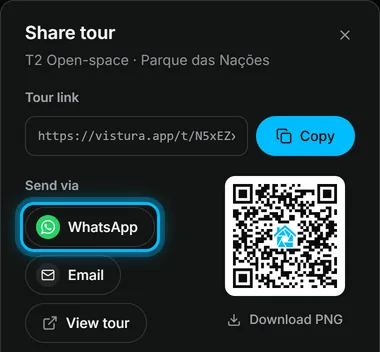
In Vistura, the Share dialog gives you the tour's link, a QR code to download and a ready message for WhatsApp and other apps. Open it with Share (the share icon on the tour's card on your dashboard), or with Share at the top right of the tour editor. It works on every plan.
Before you start
The tour must be Public or Password-protected: see Publish a tour and choose who can see it.
Steps
From your dashboard (quickest on a phone)
- On your dashboard, select Share, the share icon on the tour's card. Share tour opens.
- Under Send via, select WhatsApp, then pick the chat. The message holds the tour's name and its link.
- To paste the link somewhere else, select Copy next to Tour link.
- For print, select Download PNG under the QR code.
From the tour editor
- Select Share at the top right. On a phone, it is the share icon.
- Under Tour link, select Copy.
- Under Send via, pick an app: WhatsApp, Email, Facebook, LinkedIn and more. On a phone, More… opens your phone's own share menu, with every app you have.
- Under the QR code, select Download PNG. The file is large and has a white margin, ready for flyers, window cards and for-sale boards.
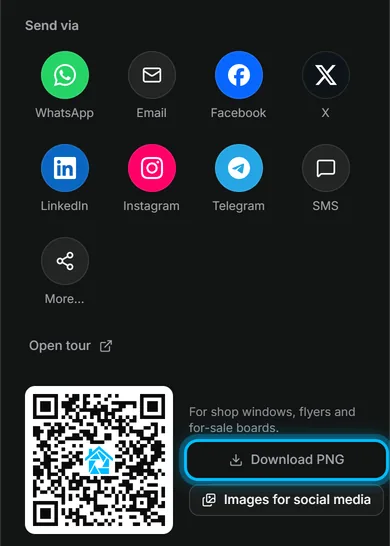
Result buyers open the tour from your message or by scanning the code with their phone's camera.
Was this helpful?
Thanks for telling us.
Sorry it did not help. Write to us and we will answer: support@vistura.app
More in this section: Publish and share
- Publish a tour and choose who can see it
- Send the tour: link, QR code, WhatsApp
- Put the tour on your website
- Make images for social media from your tour
- Bring buyers from property portals to your tour
- Your tour's address: short link, custom address, own domain
- Your public profile page
- Protect the owner's privacy
- Mark a property as sold
- Take a tour offline, or choose which tours stay online
- Delete a tour