Choose what buyers see on screen in your tour
- All plans
- Computer or phone
- Updated
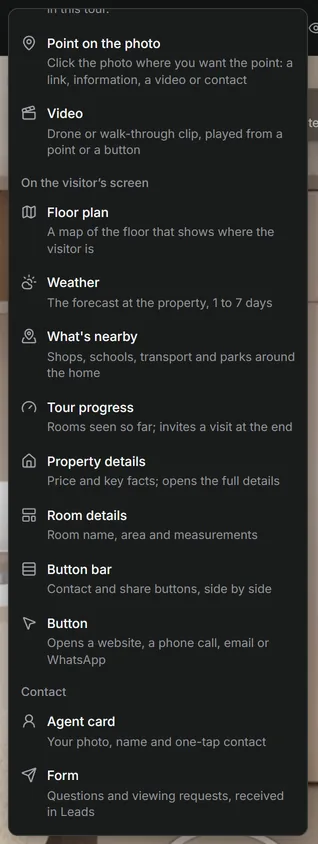
In Vistura, everything that sits over the photos comes from Add in the tour editor: your agent card, the button bar, the room name, the property details and more. You place each one, choose its style, and can give phones their own layout. Most elements work on every plan; the floor plan, and buttons that play a video or book a viewing, need Pro or Business on your account.
Before you start
New tours already show your agent card, the Contact and Share buttons and the room name: see Set up every new tour the way you like.
Steps
Add an element
- Open the tour in the editor and select Add at the top right. On a phone, it is the +.
- Under On the visitor’s screen or Contact, pick the element. It appears on the view, and its settings open.
- For Weather and What's nearby, add the property's address when Vistura asks for it.
Place it and choose its look
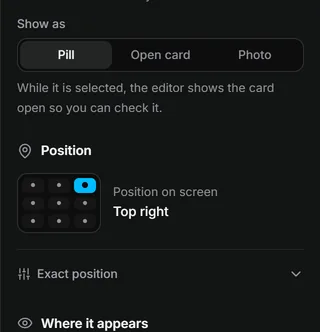
- Drag the element on the view to where you want it, or, under Position, pick one of the 9 spots.
- Under Style, choose Glass, Dark, Light or Minimal. The style is the same on computers and phones.
- Under Where it appears, choose The whole tour, One floor or One room.
Fill in your agent card
- Select your agent card on the view. Its settings open.
- Select Use my profile to fill in your name, photo and contacts.
- Under Show as, choose Pill, Open card or Photo.
Give phones their own layout (on a computer)
Phones follow the computer layout; the button bar and the floor plan move to a phone-friendly spot by themselves. To place something differently on phones:
- At the top of the editor, select Phone (the phone icon). The view becomes a phone screen.
- Select the element and drag it, or change its Position. These changes apply to phones only.
- Select Computer to go back.
Result buyers see each element where you put it, on a computer and on a phone. Select Preview to check.
What you can put on screen
| Element | What buyers see |
|---|---|
| Agent card | Your photo and name, with one-tap contact |
| Button bar | Contact and share buttons, side by side |
| Room details | The name of the room they are in, with its area |
| Property details | The price and key facts; a tap opens the full details |
| Tour progress | The rooms seen so far, and an invitation to book a viewing at the end |
| Button | One button that opens a website, a call, an email or WhatsApp |
| Form | Your contact form, as a button or always open |
| Weather | The forecast at the property, for 1 to 7 days |
| What's nearby | Shops, schools, transport and parks around the home |
| Floor plan | A map of the floor that shows where they are (Pro) |
Was this helpful?
Thanks for telling us.
Sorry it did not help. Write to us and we will answer: support@vistura.app