What buyers see when they open your tour
- All plans
- Computer or phone
- Updated
A Vistura tour opens in any browser, on a phone or a computer, with nothing to install. Buyers walk from room to room, open the property details, measure, save the rooms they like and contact you without leaving the tour. This page shows what they see, so you know what to expect or can send it to a seller who asks.
Try it as a buyer
- In the tour editor, select Share, then Open tour.
- Open the same link on your phone too. The tour looks different on each, as below.
Signed in, you see the tour even while it is private. Buyers can open it once it is Public or Password-protected: see Publish a tour and choose who can see it.
Look around and walk through
- Look around: drag with a finger or the mouse. To zoom, pinch with two fingers on a phone, or use the mouse wheel.
- Walk to the next room: tap a link on a door. The tour starts in the photo you chose as the first one.
- Jump to any room: the strip at the bottom shows every room by name. Buyers can hide it with Hide photos.
- Points: a tap opens your note, photo, video or button. On a phone it opens from the bottom of the screen.
On a phone
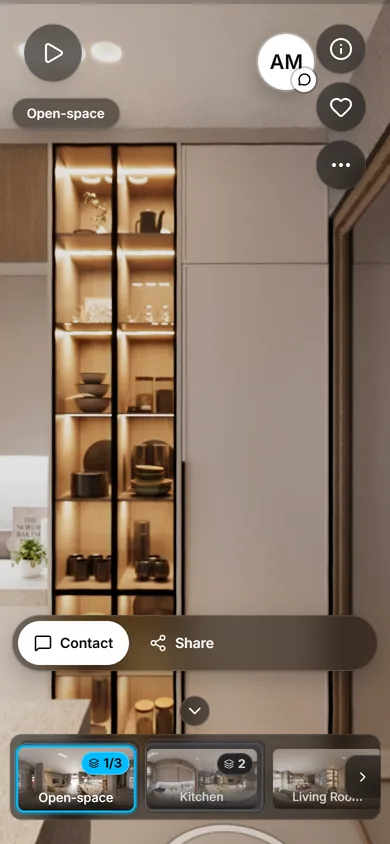
The right side keeps the tour clear:
- the (i) button opens the property details;
- the heart saves the room;
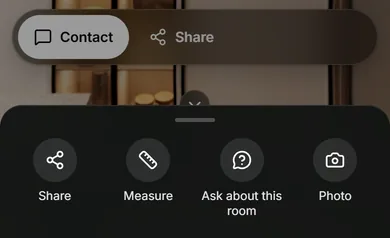
- More opens Share, Measure, Ask about this room and Photo.
Your agent card starts as a small button, so the photo fills the screen. One tap opens it.
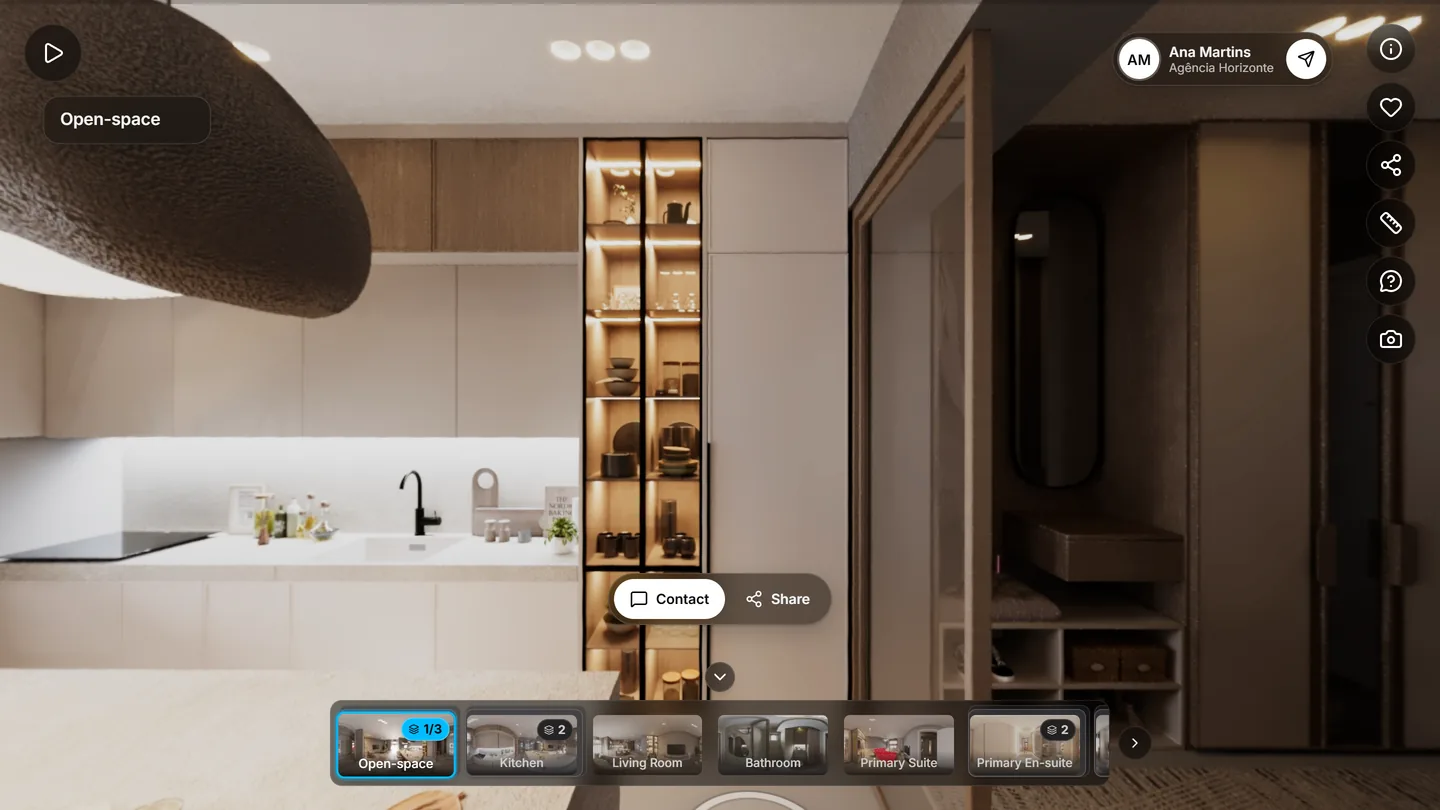
On a computer
The same buttons sit in a column on the right, each with its name when the mouse is over it. Your agent card shows on the tour, and on Pro and Business the floor plan sits in a corner.
Property details
The (i) button opens Property details: price, rooms, area, features, description and a map. The map shows the area, not the street address, unless you chose to show it. Below, Created by links to your public profile.
Floor plan
The floor plan needs Pro or Business on your account. A small plan shows where the buyer is and which way they face. A tap on a point takes them to that room. On a phone, buyers open the plan with Open floor plan, then pinch to zoom.
Contact you
- Agent card: your photo and name, with Send a message, WhatsApp, Call, Email and Website, as you set them.
- Forms: what buyers send arrives in Leads.
- Book a viewing: with booking on, Book a visit lets buyers pick a day and a time from your calendar (Pro).
- Tour progress: Keep exploring until they have seen every room, then You have seen the whole home with Book a visit.
Visitors stay anonymous until they leave their details; then they are a lead in Leads.
Like, share or ask about a room
- Heart: I like this room. On Pro, you see the favourite rooms in your statistics.
- Share: WhatsApp, Email or Copy link. A box lets buyers send just the room on screen.
- Ask about this room: opens your contact form, already saying which room the question is about.
Measure
Buyers tap Measure, then tap the floor where the measurement starts.
- For a distance, they tap a second point on the floor.
- For a height, they tap the dashed line above the first point, at the top of a wall, door or window.
The result is an estimate from the photo, and says so. It uses the camera height you set in the tour settings.
Take a picture
Photo saves the view on screen as a picture: Full or Custom, then Save picture. Buyers keep the room they want to show their family.
What's nearby and the weather
If you add them, What's nearby lists shops, schools, transport, parks and more, with walking minutes and a map. The weather shows the forecast for the next days in the home's area. Both need the property's location.
Guided tour, narration and presentation mode
These need Pro or Business on your account:
- Guided tour: switch it on in Tour settings > Autoplay > Play the tour by itself; a play button then sits at the top left. The tour turns and moves from room to room by itself. Any touch stops it.
- Narration: Listen to the agent plays your voice in the room, with captions. The guided tour plays it by itself.
- Presentation mode: for a TV or a screen in your shop window. The tour plays on its own with the price and a QR code: Scan to see it on your phone. Open it from Share > Presentation mode (TV).
In the buyer's language
The tour's buttons and messages follow the language of the buyer's phone or browser: English, Portuguese, Spanish, German, French, Italian or Dutch. The texts you write, such as the tour name and your notes, show as you typed them.
Change what buyers get
- Switch the heart, share, ask and measure buttons on or off in the tour settings, under Visitor buttons.
- Add or move the agent card, buttons, weather and the rest from Add: see Choose what buyers see on screen in your tour.
- On Pro and Business, buyers also see the floor plan, video, narration, guided tour and booking, with your logo and colours. On Free, tours carry the Vistura brand.
Was this helpful?
Thanks for telling us.
Sorry it did not help. Write to us and we will answer: support@vistura.app