Bring a tour from another app
- All plans
- On a computer
- Updated
To move a tour to Vistura, export it from the other app as a .zip and drop it on the photo list of a new Vistura tour. Vistura reads Marzipano and krpano exports, which many apps produce (Panoee among them), with their links and notes, or any .zip of 360 photos. It works on every plan.
Before you start
In the other app, export the tour as a .zip, or put its original 360 photos in a .zip. Open Vistura on a computer.
Steps
- On your dashboard, select Create tour, then Upload 360° photos. The editor opens with an empty photo list.
- Drag the .zip from your computer onto the photo list. Or select Upload photos and pick the .zip.
- Keep the window open while Vistura counts the photos it uploads.
- When it says the tour was imported, check the message: it gives the number of photos and links that came in.
- Open each photo and check its links and notes.
- Rename any photo whose name is not the room's name: select its More actions > Rename.
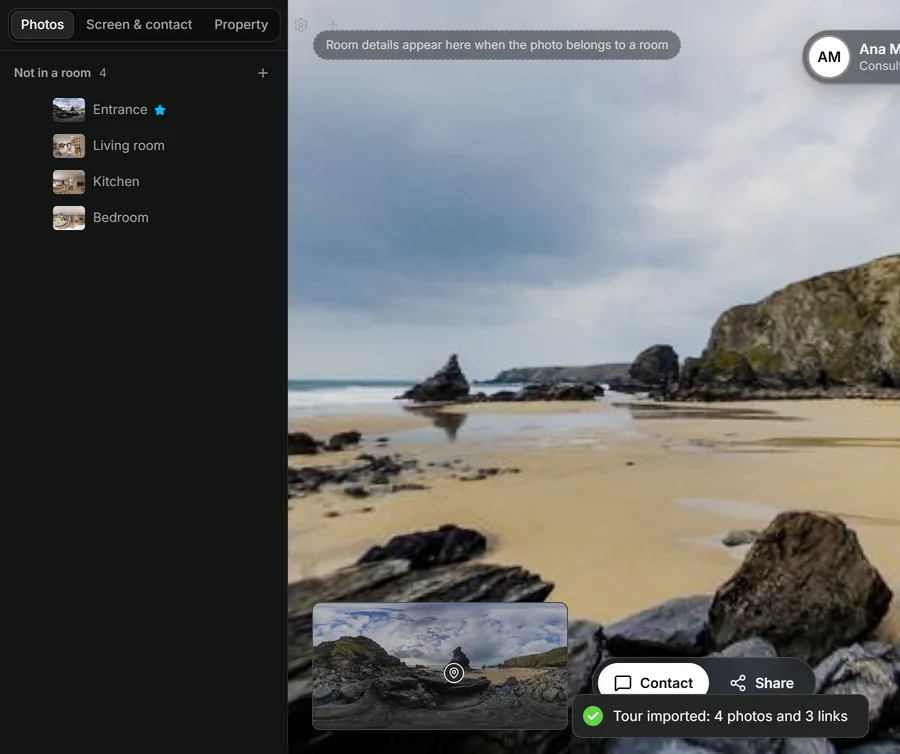
Result the tour is in Vistura, with one photo per spot. The links between the photos and the notes on them are in place, as links and Text points.
What comes across
| From the .zip | In Vistura |
|---|---|
| Each 360 photo (also a photo split into cube tiles) | One photo in the list, named after its scene or file |
| Links between photos | Links buyers tap to walk to the next photo |
| Notes with a title and text | Text points on the same spot |
Everything else, such as the floor plan, the look of the buttons, sounds and the other app's logo, you set up in Vistura. See Add a floor plan to your tour and Choose what buyers see on screen in your tour.
Was this helpful?
Thanks for telling us.
Sorry it did not help. Write to us and we will answer: support@vistura.app