Real estate photo editing: free tools, fixes and the rules
Real estate photo editing step by step: brighten, straighten, fix colour, hide faces and plates, and which edits MLSs and portals let you make.
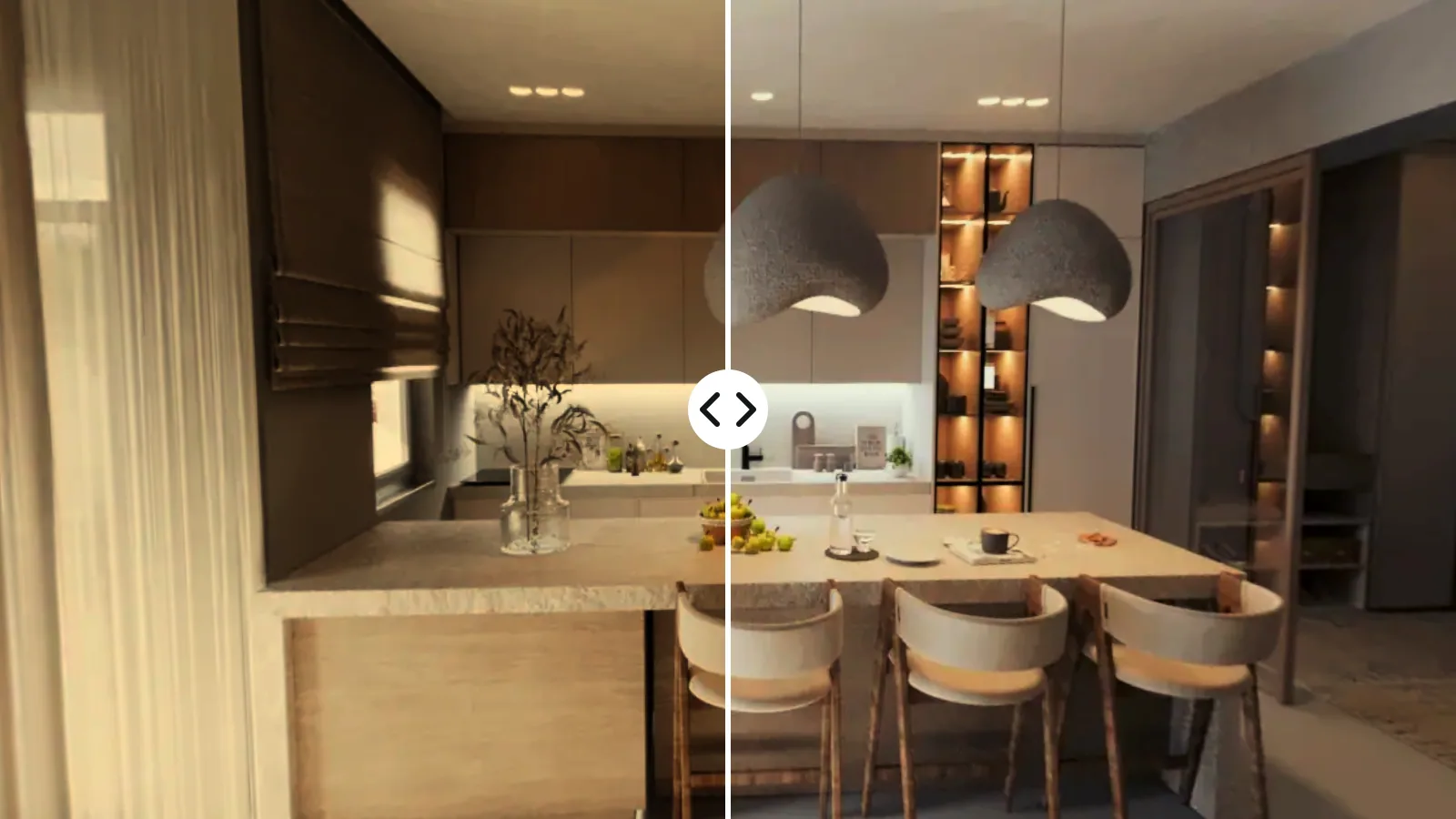
Real estate photo editing means fixing what the camera got wrong, such as dark rooms, yellow light and leaning walls, and hiding what should not be public, without changing the home itself. This guide gives you the order that saves work, a free tool for each step, and which edits US MLSs and European portals let you make, label or forbid.
What to fix, in the order that saves work
- Choose the photos. Keep the sharpest shot of each room and drop the near-duplicates.
- Straighten leaning walls and door frames.
- Brighten dark rooms.
- Fix the white balance so walls look white, not yellow or blue.
- Bring back the windows so they show the view.
- Check the sky on outside photos.
- Hide faces, number plates and personal things.
- Export without location data, and make a watermarked copy only where it is allowed.
Straighten first, because straightening crops the edges of the photo, so you judge the light on the part that will be published. Hide private details before you export, so no copy leaves your device with them. Add a watermark last and only on a copy, because some portals refuse marked photos.
1. Straighten leaning walls
Walls lean when the camera points slightly up or down. The vertical lines of the room then run towards each other, and the room looks like it is falling over. Rotating the photo does not fix this: it tilts the floor instead. You need a perspective correction, which pulls the verticals back to parallel.
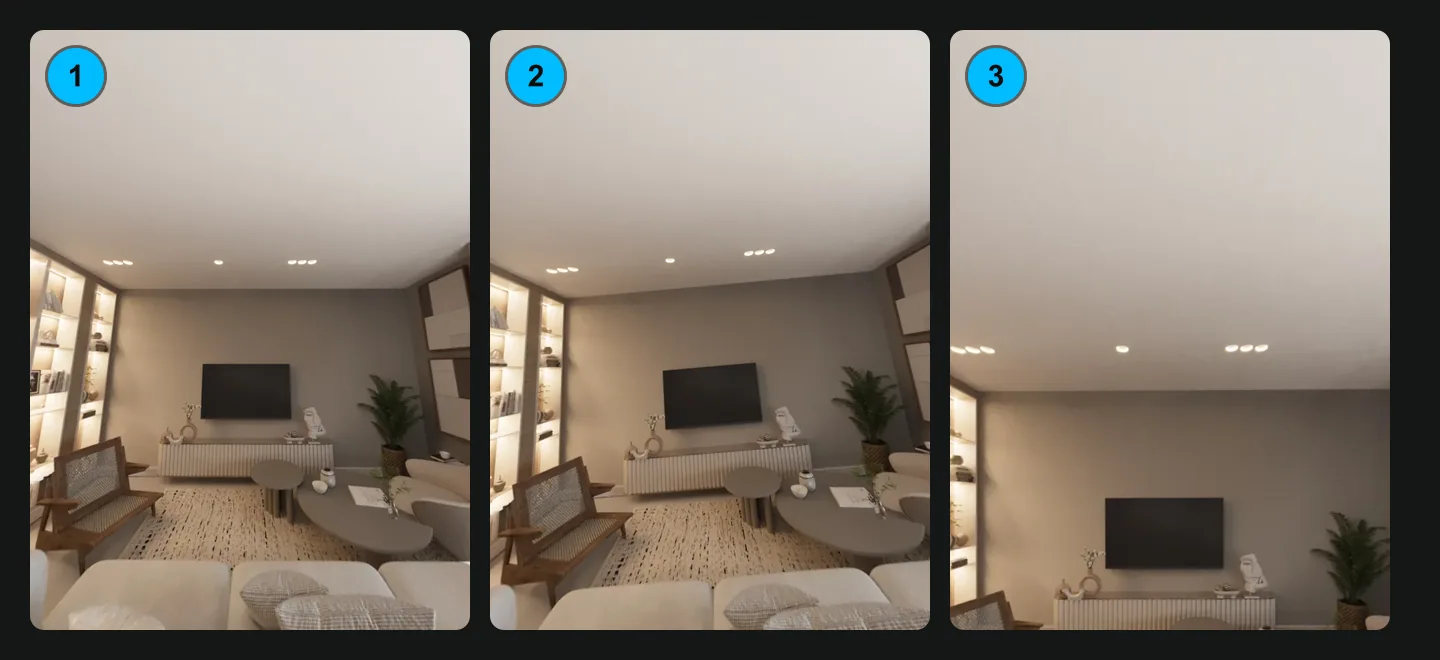
On an iPhone, the Photos app has a button to "tilt vertically" when you crop a photo (Apple). Snapseed's Perspective tool does the same on any phone. The phone apps that do it are compared step by step in our real estate photography tips. In a browser, the free Fix vertical lines tool finds the verticals in a room photo, straightens them automatically or with a slider, and crops the empty corners while keeping the photo's proportions.
2. Brighten dark rooms without the fake HDR look
Rooms come out dark because the window is the brightest thing in the frame. The camera exposes for it and leaves the rest of the room in shadow. Three moves fix most photos:
- Exposure or brightness lifts the whole photo.
- Shadows opens up dark corners without touching the bright parts.
- Highlights brings a bright window back down so it does not burn out.
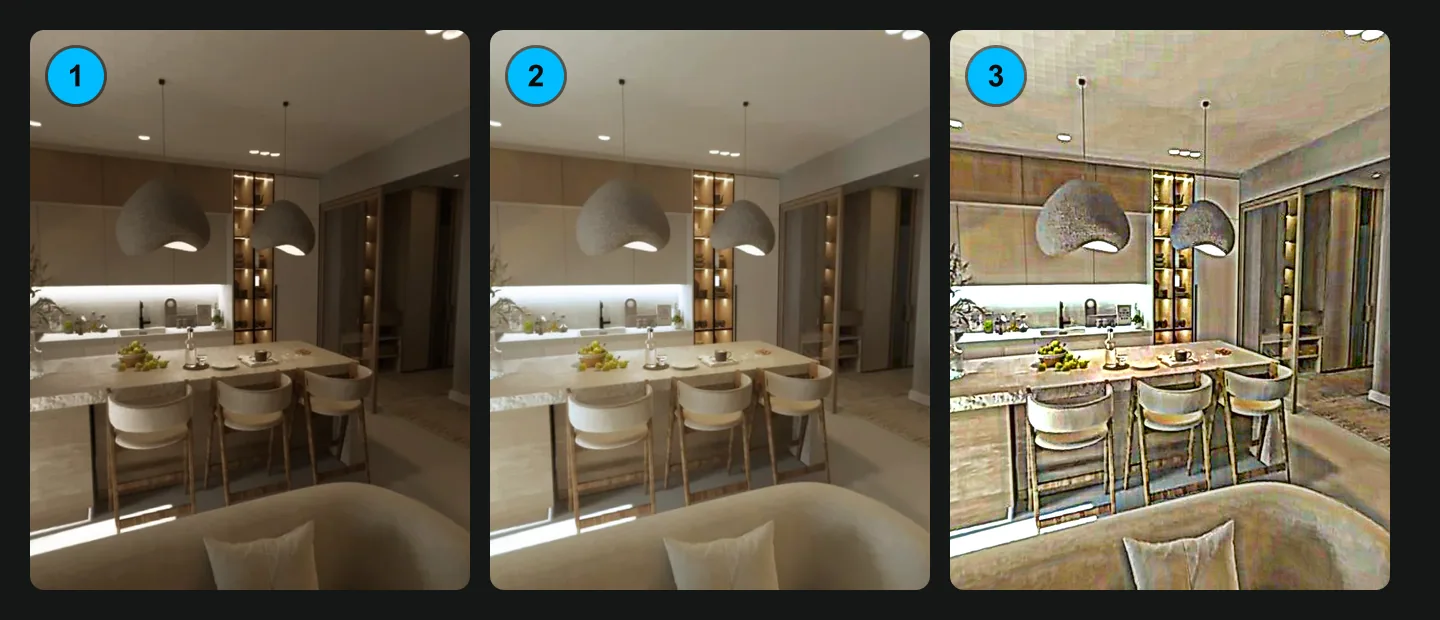
Stop before the photo looks processed. The signs you went too far are grey halos around windows, flat grey walls, glowing edges on furniture, and a room brighter than daylight could ever make it. Buyers notice that look and start to wonder what else was changed.
You can do this for free with the light and colour sliders in your phone's photo editor, or with Snapseed's Adjust tool, which can "adjust exposure and color automatically or manually" (App Store). The free Brighten real estate photos tool has an Auto setting that raises the exposure, lifts the shadows and holds the windows back so they do not burn out, plus sliders for brightness, shadows, highlights, warmth and vibrance.
Brightening is accepted by every rule in the table further down.
3. One colour of white: fix the yellow light
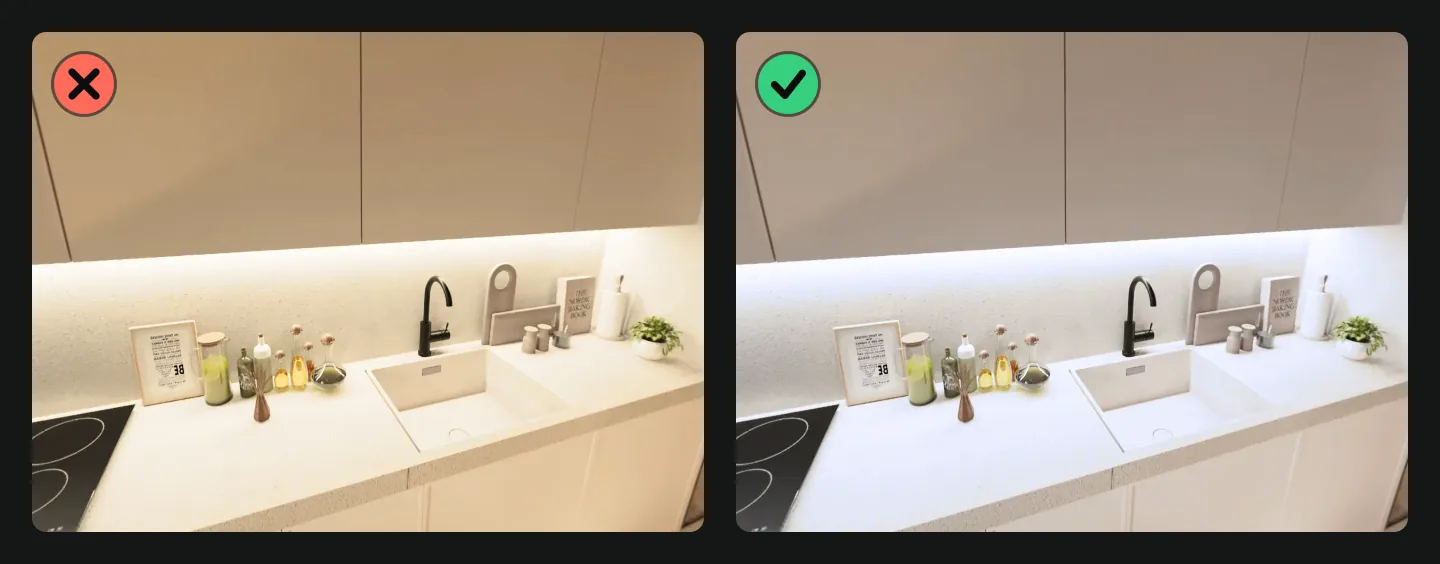
Most rooms mix two kinds of light: cool daylight from the window and warm light from the bulbs. The camera picks one white balance for the whole photo, so either the walls near the lamps turn yellow or the window side turns blue.
Move the warmth or white balance slider until a white wall looks white. Snapseed's White Balance tool exists to "adjust the colors so that the image looks more natural" (App Store). The Auto setting of the Brighten tool also takes some of the yellow of indoor bulbs out, gently, so a warm room does not turn cold.
Next time, use bulbs of one colour in a room where you can, or switch off the lamps that clash with the daylight. White balance and colour correction are on the list of edits that need no label under the California rule (CRMLS FAQ).
4. Windows: keep the detail, keep the real view
A window that shows the garden or the street tells buyers where the home is. Bring the highlights down until the view appears. If the window is pure white in the original, there is no detail left to bring back, and the only fix is to shoot it again with the curtains open and the room lights on.
The line is simple. You may darken a bright window. You may not paste in a better view. CRMLS does not allow changes to "views through windows" or to neighbouring properties, even with a label (CRMLS FAQ).
5. Sky: when a blue sky is fine and when it is not
The sky is where the rules disagree most clearly.
- Metro MLS (Wisconsin) lets you change the colour of the sky without its altered watermark "as long as the results remain realistic" (Metro MLS, 21 April 2026).
- CRMLS (California) bans changes to the "landscape" and to what is visible from the property, and does not mention the sky at all. Its advice for anything unclear is "When in doubt, err on the side of caution" and disclose (CRMLS FAQ, updated 13 February 2026).
So keep a real sky where you can: shoot the outside on a clear day, at the time the front of the house gets the sun. If you do replace a grey sky and your MLS treats that as an alteration, label the photo and keep the original next to it. Editing services sell this as a per-photo job; BoxBrownie, for example, lists day to dusk conversions on its price page (October 2026).
6. Hide faces, number plates and personal things
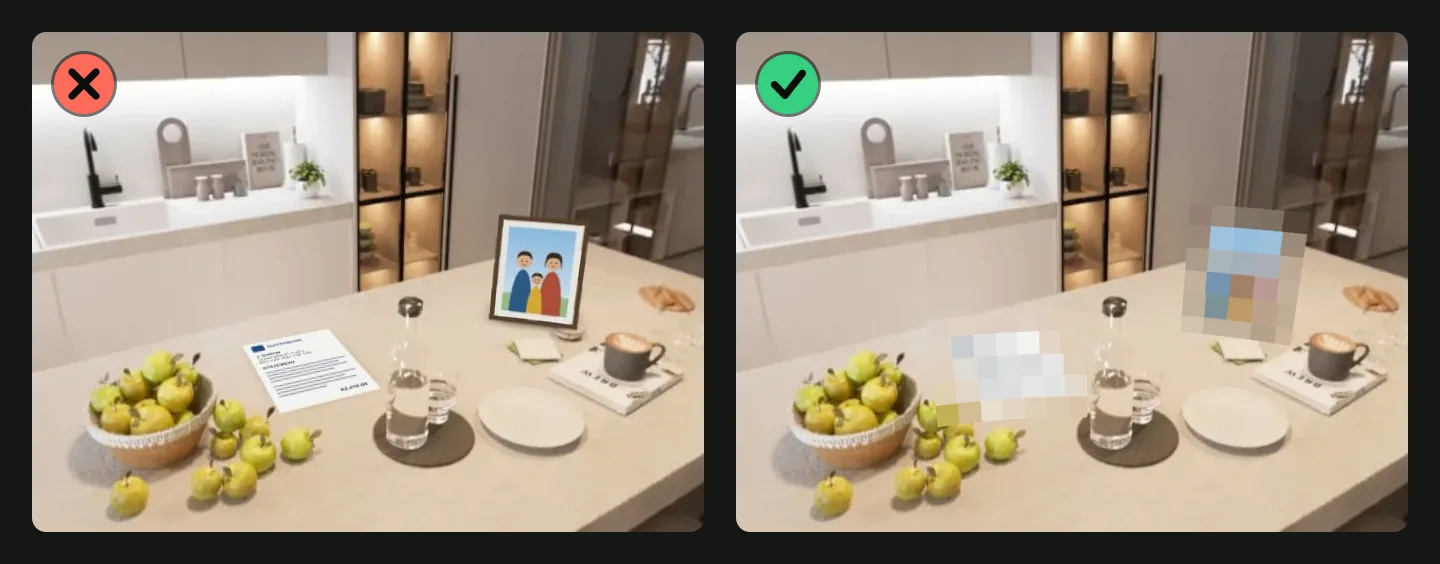
A listing is public, and anyone can save its photos. Before you publish, look through every photo for:
- faces: the owners, a tenant, or you in a mirror or a glass door;
- family photos on walls and shelves;
- letters, bills and documents, and anything on a screen;
- number plates in the drive or on the street;
- alarm panels and keys.
Some MLSs go further. Stellar MLS in Florida does not allow "Lifestyle photos or virtual tours featuring people" at all (Stellar MLS).
Putting things away before the shoot is easier than hiding them later, as our home staging tips explain. For what is left, the free Blur faces and number plates tool works on listing photos as well as 360 photos. Draw a rectangle, an ellipse or a brush stroke over the detail. Pixelated blocks hide better than a light blur, so use a high strength for plates and documents: at 10, a plate becomes three or four blocks.
7. Remove the location before you upload
A phone stores the GPS position, the date and the phone model inside every photo file (Apple lists "Photo geotagging" among the iPhone's features). If your listing shows only the area, a downloaded photo can still give away the exact address.
On an iPhone you can remove it per photo with Adjust Location > No Location (Apple). For a whole set, the free Remove photo metadata tool shows what each file carries and strips it without re-compressing the image. The other free tools in this guide already write new files without location data, so this step matters most for photos you upload straight from the phone. In a Vistura tour neither this step nor brightening needs a separate tool: the upload removes the camera metadata, GPS position included, and "Auto colour on all photos" corrects every room, on every plan. The tool stays right for a file you send to a portal or by email.
What you may edit, what you must label, what you must not
There is no single industry rule. Since California's AB 723 "went into effect 1/1/2026", MLSs have written their own, and they draw the lines in different places. Here are three of them, quoted from their own pages and read on 4 November 2026.
| Edit | CRMLS, California (FAQ, 13 Feb 2026) | Metro MLS, Wisconsin (rules, 21 Apr 2026) | Stellar MLS, Florida (rules) |
|---|---|---|---|
| Brightness, exposure, white balance, colour, sharpening, straightening, cropping | Allowed, no label | Allowed, no watermark | Allowed ("Brighten underexposed photos") |
| Sky colour | Not stated; disclose "When in doubt" | Allowed, no watermark, if "the results remain realistic" | Not stated |
| Removing clutter, a yard sign, photos on the wall | Removing "furniture, appliances or decor" is altered: label and original next to it | Allowed, no watermark | Removing items "easily removable in real life" allowed outside |
| Virtual staging (adding furniture) | Label ("Virtually Staged" and similar) and original immediately before or after | Altered: original first, then the photo with the Flexmls watermark, and "Photos are Digitally Altered" in Public Remarks | Allowed ("Stellar MLS allows virtual staging"); labelling not stated on this page |
| Changing the home (floors, walls, paint, fixtures) | Not allowed, unless the work will be done by closing | Altered ("modifying structures or landscaping") | Not allowed ("Swap out or remove permanent fixtures") |
| Removing what is outside (utility poles, streetlights, the view) | Not allowed | Altered ("removing permanent obstructions") | Not allowed ("Remove utility lines") |
| People in the photos | Not stated | Not stated | Not allowed |
The rules disagree. Metro MLS lets you remove a yard sign and recolour the sky without a watermark; CRMLS treats removing decor as an alteration and forbids changes to the view. Read the photo rules of your own MLS before you take any row of this table as yours.
Above every MLS sits the NAR Code of Ethics, in force from 1 January 2026. Article 12 asks members to "present a true picture" in their advertising, and Standard of Practice 12-10 bans "misleading consumers, including use of misleading images" (NAR). It applies to NAR members across the US, whatever their MLS says.
Breaking the rules can cost money. From 1 September 2026, Metro MLS sanctions an altered photo without its watermark at $10, and an altered primary photo at $10 a day until it is replaced (Metro MLS; reported by The Close, 3 September 2026). CRMLS has no fine yet and said it would revisit fines in 2026 (CRMLS FAQ).
In Europe, Funda in the Netherlands allows AI-edited images only when they are clearly labelled in the image, and not as the main photo except for new builds, as AVROTROS Radar reported on 28 August 2026. ImmoScout24 in Germany tells private advertisers they may adjust brightness and contrast as long as they do not remove things or add them (ImmoScout24). The EU AI Act also requires deep fakes to be disclosed from 2 August 2026 (Article 50); check what it means for your listings.
The rule of thumb: correct the camera, do not correct the house. When an edit changes what a buyer would see at a viewing, label it and keep the original next to it, as with virtual staging.
Watermarks: only where the portal allows them
Agents put a logo on photos to stop copying and to show their brand. Check first, because several portals refuse it:
- ImmoScout24 (Germany) counts a provider's contact details or logo placed in a listing photo as misuse, and can deactivate the listing (terms, clause 5.4).
- SeLoger (France) asks private sellers for photos free of "logos, textes, filigranes" (SeLoger).
- Casa.it (Italy) bans images with a "marchio, filigrana, logo o testo" (terms, section 9).
- Metro MLS uses its own watermark to mean "altered", so a mark of yours can confuse the message.
Keep clean originals for portals and put the mark on copies for social media and messages. The free Watermark real estate photos tool writes new files and leaves your originals untouched.
Where portals do not allow marks on photos, let your brand travel in the tour instead: on Pro, Vistura tours carry your logo and colours, with no "Created with Vistura" badge.
Free tools for each fix
| Fix | On the phone, built in | Free app (Snapseed) | Free in the browser (Vistura) |
|---|---|---|---|
| Straighten walls | iPhone Photos, "tilt vertically" | Perspective | Fix vertical lines |
| Brighten rooms and windows | Light sliders in the photo editor | Adjust, Selective | Brighten real estate photos |
| White balance | Colour sliders in the photo editor | White Balance | Brighten real estate photos, Warmth slider |
| Blur faces and plates | Blur faces and number plates | ||
| Location data | iPhone, Adjust Location > No Location | Remove photo metadata | |
| Watermark | Watermark real estate photos |
Snapseed is free, from Google (App Store). The Vistura tools are free too, need no account and put no Vistura mark on your photos. They run on your device, so your photos are never uploaded.
Edit the whole listing at once
A listing has many photos, and editing them one by one gives uneven colour: one room warm, the next one cold. Work on the set instead. The Brighten tool takes all the photos of a listing at once. Each photo gets its own Auto adjustment, the sliders you move apply to all of them, and you download them one by one or as a ZIP.
The Watermark tool does the same for marked copies: your logo or a line of text, in one of nine positions or a diagonal pattern, at the same place and size on every photo. It remembers your logo and settings on your device, so the next listing takes seconds.
Checklist before you upload
- Walls and door frames straight
- Rooms bright, windows not white
- One colour of white in every room
- A real sky, or a label where your MLS asks for one
- No faces, number plates, family photos or documents
- No location data in the files
- Originals kept, and placed next to any altered photo where the rules ask
- A label on anything that changes what a buyer would see at a viewing
- Watermarks only on copies, and only where the portal allows them
360 photos need a few more steps, such as the horizon and the tripod: see how to edit 360 photos.
Frequently asked questions
Is it legal to edit real estate photos?
Yes, within limits. The MLS rules we checked accept corrections to light, colour, straightness and cropping. Changing the property or what is outside it, or hiding a defect, is not accepted, and virtual staging needs a label and the original photo next to it. Rules differ between MLSs and portals, so read the photo rules of the one you publish on.
Do I have to disclose sky replacement?
It depends on where you publish. Metro MLS in Wisconsin lets you change the colour of the sky without its altered watermark as long as the result stays realistic. The CRMLS FAQ in California does not mention the sky and tells agents to disclose when in doubt. If your MLS treats it as an alteration, label the photo and keep the original.
Can I remove a car or the bins from a listing photo?
Rules differ. Metro MLS lists decluttering and removing a yard sign among the edits that need no watermark. CRMLS counts removing furniture, appliances or decor as a digital alteration, which needs a label and the original next to it. Hiding a number plate with a blur is a different thing. It protects someone's privacy and does not change the home.
What is the best free real estate photo editor?
No single app does everything. The editor built into your phone and Snapseed, which is free from Google, cover light, colour, straightening and small removals. Free browser tools add what those apps make slow, such as brightening a whole listing at once, blurring plates and stripping location data.
Should I keep the original photos?
Yes. CRMLS asks for the original immediately before or after an altered photo, and Metro MLS asks for the original first. Keeping the untouched files also lets you redo an edit that went too far, and prove what the home looked like.