How to take a 360 photo on iPhone: 5 ways that work
How to take a 360 photo on iPhone without a 360 mode: five ways compared, what each one costs, and the technique that keeps a room sharp.
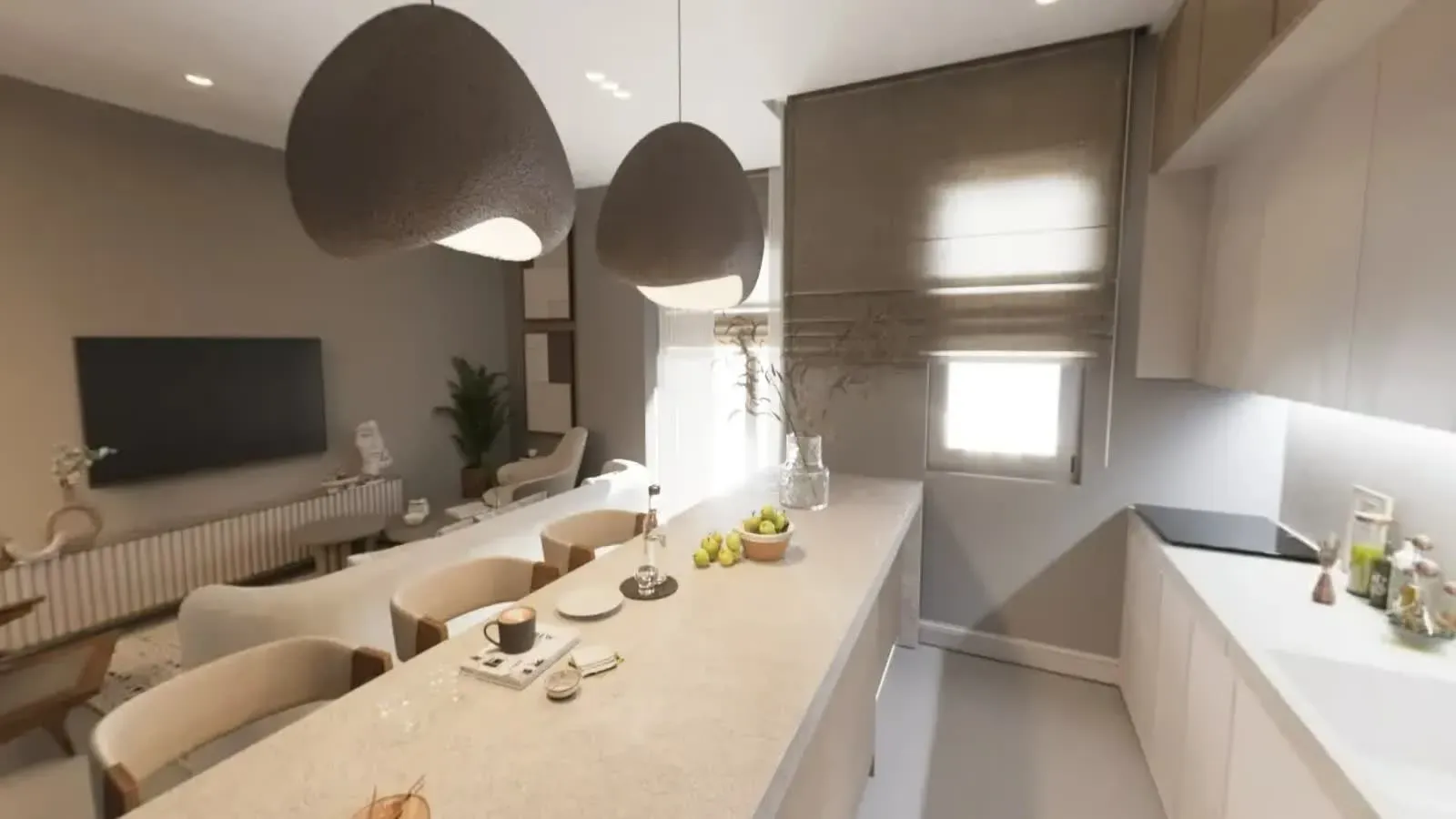
Here is how to take a 360 photo on iPhone: use an app that guides you round a full turn and joins the photos, or a 360 camera you control from the phone. The Camera app has no 360 mode, and its Pano mode makes a wide strip, not a sphere you can look around. For a sharp result, turn the phone around its lens rather than around your body, and switch on every light.
Below are the five ways that work, compared with what each one costs, then the steps for photographing a room.
Can an iPhone take a 360 photo on its own?
No. The iPhone has no 360 or spherical mode, and Pano, the closest thing to it, captures a wide strip rather than the whole scene around you.
Apple's camera guide for iOS 27, the current version, lists Pano and nothing spherical. Its instruction is a single sweep along a line: "Pan slowly in the direction of the arrow, keeping it on the center line" (Apple Support). The new Camera features in iOS 27 do not add one either (9to5Mac). So the iPhone 360 camera mode many people look for does not exist.
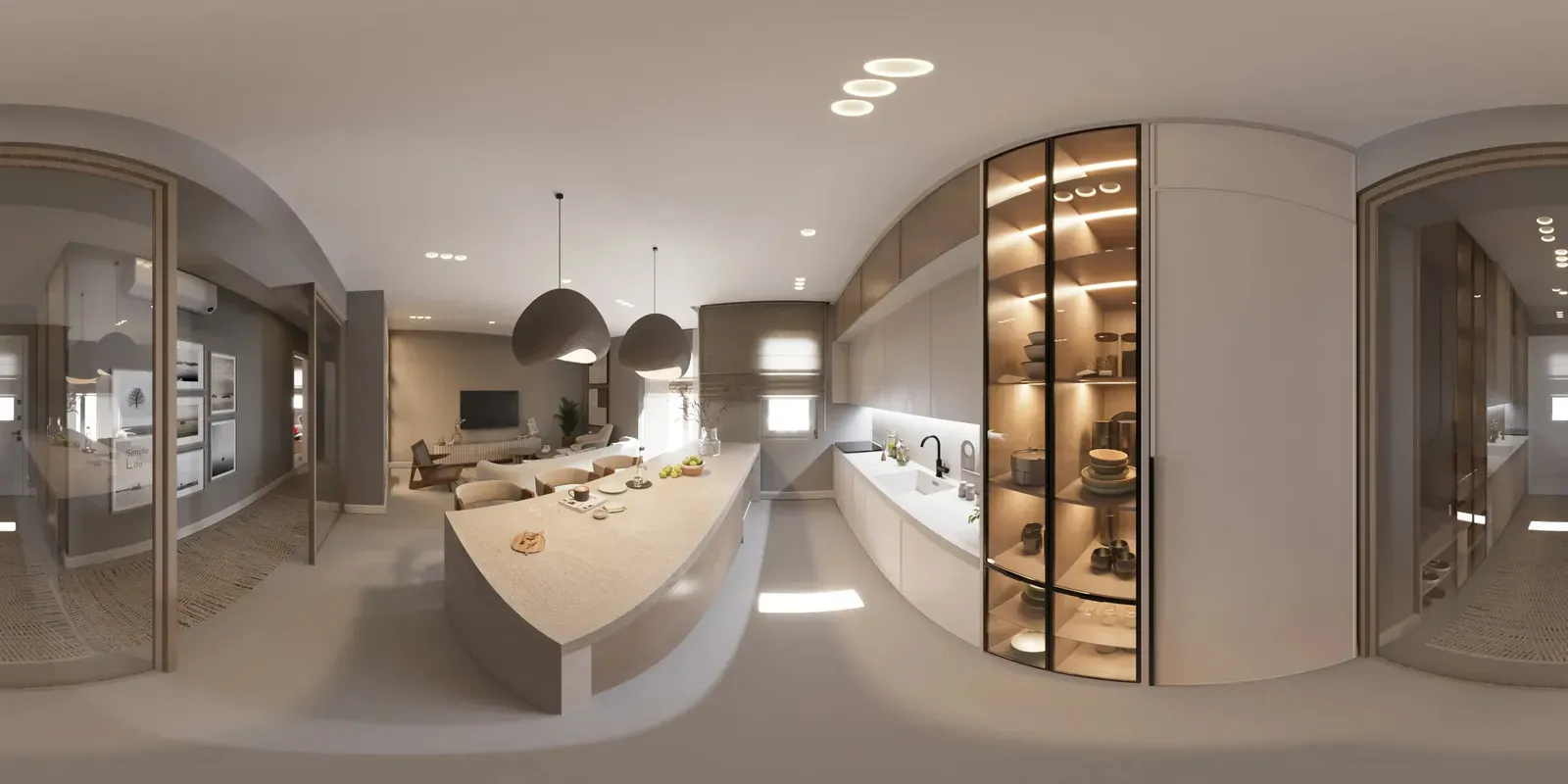
A true 360 photo covers everything around one point: all round, up to the ceiling and down to the floor. Laid flat, it is an image twice as wide as it is tall, with the ceiling and floor stretched along the edges. A Pano has no ceiling, no floor and no full circle to turn around in.
Can't find Pano? Since iOS 26 the Camera app opens on Photo and Video, and you swipe along the modes to reach it (9to5Mac). For a wide view, lock the exposure first: touch and hold until "AE/AF Lock" appears (Apple Support).
Spatial Scenes add a depth effect to a normal photo; they do not capture what is around you (MacRumors). Converters such as ThingLink's free Pano to 360 tool wrap a Pano into a 360 file, but the phone never photographed the ceiling or the floor, so whatever fills them is not the real room. For a true 360, you need one of the five ways below.
5 ways to take a 360 photo on iPhone, compared
All five give you a 360 image you can look around in. They differ in what you install, what you pay and where the result ends up. If you searched for a 360 camera app for iPhone, the first three rows turn the phone you already have into the camera.
| Way | What you need | Cost (checked 30 Oct 2026) | What you get | Best for |
|---|---|---|---|---|
| A 360 app: Teleport or 360 Photo Cam | The app, iOS 15.1 or later | Free to install, with in-app purchases | One 360 photo, joined by the app | A single 360 of a place |
| Vistura Capture | The phone's browser, nothing to install | Free to capture; a free account to send or download | A 360 of each room, sent into one tour | Rooms and whole homes |
| Polycam | The app, iOS 18 or later | Free to install; Pro $26.99 a month or $199.99 a year | 360 tours, 3D scans and floor plans | Jobs that need measurements |
| Zillow 3D Home or Matterport | The app (Zillow 3D Home needs iOS 26 or later) | Zillow 3D Home free; Matterport Free plan: 1 active space | A tour on Zillow's or Matterport's platform | Zillow listings in the US; a 3D model |
| A 360 camera with its iPhone app | The camera, such as the Insta360 X6 | $699.99 at Insta360's US store | The whole sphere in one shot | Top listings, outdoors, people moving |
Many older guides still send iPhone users to the Google Street View app. Google closed it in March 2023 and now points to Google Maps for adding photo spheres (9to5Google).
Teleport and 360 Photo Cam, for a single 360
Both apps guide you round a turn and stitch the photos into one 360 image. Teleport is free to install and lists "Teleport Pro" as an in-app purchase at $6.99 and $39.99, without stating the billing period. 360 Photo Cam is free to install and sells credits from $0.49 each, or unlimited unlocks for $9.99. They suit one 360 of a view or a place.
Vistura Capture, for a room or a whole home, in the browser
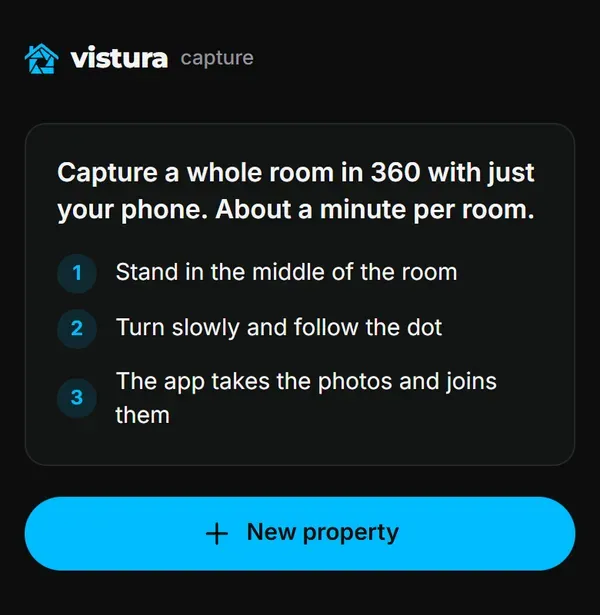
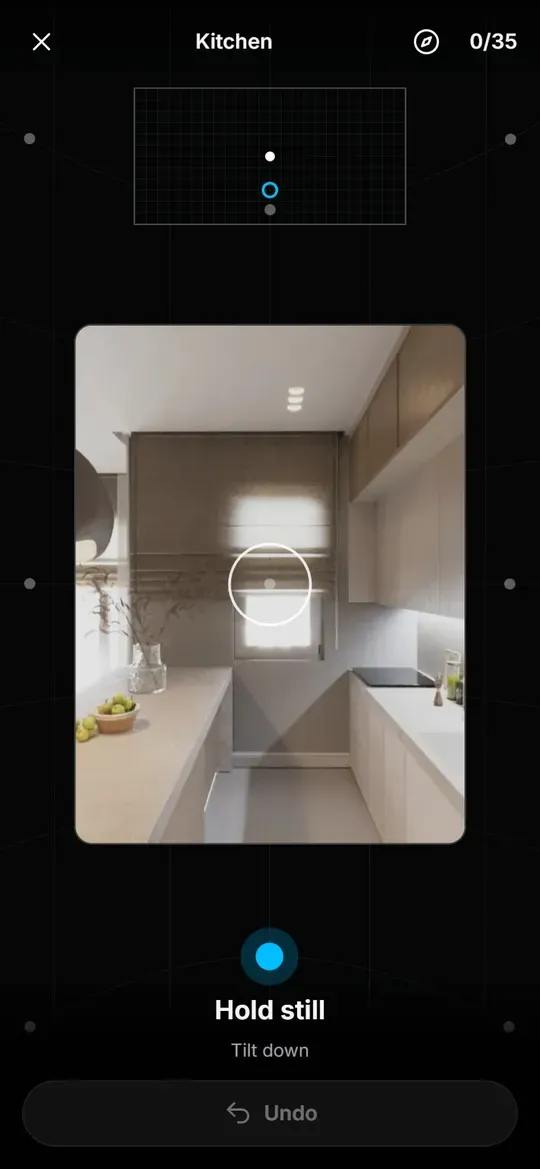
Vistura Capture opens in the phone's browser from a link or a QR code, with nothing to install. You stand in the middle of the room, turn slowly and follow the dot. It takes each photo by itself when the phone is still, then joins them on the phone and evens out brightness and colour between photos. About a minute per room. Capturing needs no account; to send the rooms to a tour or download standard 360 JPEG files, you sign in with a free Vistura account.
Polycam, if you also scan in 3D
Polycam is a 3D scanning app. Its listing leads with floor plans, measurements and 3D models, and includes 360 tours shared by link among the results. It says its 3D scanner works without LiDAR. The listing does not say which features need Pro, so check in the app before you pay. Choose it when the job needs measurements as well as views.
Zillow 3D Home and Matterport, for a tour on their platforms
Zillow 3D Home is free. Panoramas from the phone make a tour; a supported 360 camera adds an interactive floor plan. Tours post automatically to Zillow, Trulia and Redfin, and you can share them elsewhere. It suits US agents who list on Zillow.
Matterport's phone app builds a 3D tour hosted by Matterport, and its Free plan has 1 active space. Check Matterport's device list for your iPhone model before you start.
A 360 camera, for the sharpest result
A 360 camera has two lenses that catch the whole sphere in one shot, so people walking past leave no ghosts and there is no turn to get wrong. You trigger it from its iPhone app and step out of the room. The Insta360 X6 went on sale on 12 August 2026 (PhotoWorkout). The older X5 launched at about $549 (Matterport); prices vary by country.
How to take 360 photos of a room on iPhone, step by step
These steps work with any app that guides you round a turn. Rooms are the hardest subject for a phone 360, because walls are close and the light changes as you turn.
1. Prepare the room
Switch on every light and open the inside doors. Leave the blinds as they are while you shoot. Clear the floor, and ask people and pets to leave the room.
2. Choose one spot
Stand in the middle of the room, away from furniture, with the phone at about chest height. Use the same height in every room of a home, so moving between rooms in a tour feels natural. Google asks for 1.2 to 1.8 m for photo spheres on Maps (Google Maps Help).
3. Turn around the lens, not around your body
This step decides how sharp the 360 is. The camera has to rotate about one point, the no-parallax point. As the panorama community's reference puts it, "If you rotate your camera around some randomly chosen point, your images may show parallax and be difficult to stitch" (Panotools wiki). Near and far objects then shift between photos and do not line up. In practice, picture the phone fixed on a pole: you walk around it in small steps instead of swinging it at arm's length.
4. To look up or down, tilt only the phone
Keep your arm where it is and tilt the phone towards the ceiling, then towards the floor. Guided apps show a target to aim at and take each photo when the phone is still.
5. Move slowly and hold still on each target
Blur and moving people are the other causes of ghosts and broken seams. If someone walks through, wait and redo that part of the turn.
6. Small rooms, bathrooms and corridors
When the walls are close, every small movement of the phone shows at the seams. A phone tripod is the most reliable fix here. Without one, keep the phone as near the centre as you can and turn more slowly than in a large room.
7. Check the 360 before you leave the room
Look all the way round. Follow straight lines that cross a seam, such as door frames, worktops and tiles, then look at the floor and at the windows. If a seam breaks, capture again from the same spot: that usually fixes it.
Tripod or handheld?
A tripod is much more reliable than handheld. It keeps the phone on one axis, so the seams come out clean, and it makes the biggest difference in small rooms such as bathrooms and walk-in wardrobes.
Handheld can work in a larger room if you walk around the phone rather than swing it. For a whole home, though, a tripod saves you from capturing rooms twice.
Pick a phone tripod or a monopod with a phone clamp, light and slim, so little of it shows in the floor of the photo. A nadir patch, below, hides what does show.
Light: why a phone 360 comes out patchy, and the fix
A phone 360 looks patchy when the photos that make it have different brightness. The iPhone camera sets exposure by itself for each shot (Apple Support), so it darkens the photos that face a window and brightens the ones that face a dark corner. The same wall then comes out at two brightnesses, and the join shows. A capture app running in the iPhone's browser cannot lock exposure the way the Camera app can, so the room's light has to do the work:
- Switch on every light, including lamps.
- Do not open or close curtains during the capture.
- Start the turn facing away from the brightest window, and avoid pointing at it for long.
- Avoid direct sun in the room.
- Shoot when the light is steady, not while clouds pass.
Good apps even out brightness between photos, but the less there is to even out, the cleaner the result.
Fix a 360 photo after you take it
Several common problems in a phone 360 can be fixed in the browser, for free, before you publish it:
- Look around it in a free 360 photo viewer, which is also the easiest way to view a 360 on iPhone.
- If the horizon leans, straighten the 360 photo.
- Cover the tripod or your feet with a nadir patch.
- Make the file smaller for an upload limit and keep its 360 data: compress a 360 photo.
- Before posting to Facebook, check the 360 photo for Facebook.
- Need normal photos for the listing too? Frame flat photos from the 360, with straight walls.
Turn the room photos into a tour
A 360 photo of one room is a picture. Several of them, linked, become a tour that a buyer or a guest walks through, as explained in how a real estate virtual tour works.
In Vistura Capture, "Send to Vistura" creates a tour with the rooms in the order you captured them, and you finish it in the editor. You share the tour as a link, a QR code or on your public profile. Photos from a 360 camera go into the same tour, so you can add the camera later for a top listing without starting again. To try it, open Vistura Capture on your phone and capture one room; on a computer, the page shows a code to scan with the phone. The plans page shows what each plan includes.
Frequently asked questions
Can I put a 360 photo from my iPhone on Google Maps?
Google Maps takes photo spheres of at least 7.5 MP (3,840 x 1,920 pixels), in a 2:1 ratio and no larger than 75 MB, with no gaps around the horizon and no significant stitching errors. Google's help names 360 cameras and stitching software as the way to make them. You upload them in the Google Maps app, which replaced the Street View app.
How do I view a 360 photo on iPhone?
Open the file in a 360 viewer that runs in Safari, such as the free 360 photo viewer on this site, and drag to look around in every direction, including up at the ceiling and down at the floor. Nothing needs installing, and full screen makes it easier to judge seams and sharpness.
Will Facebook show my iPhone photo as a 360?
Meta says photos from 360 cameras, Photo Sphere apps and stitching software are converted to a 360 photo automatically when you share them from the Facebook app for iOS or Android. A panorama wider than 100 degrees may also be converted. Check the file before you post so it shows as a sphere and not as a flat picture.
Do I need an iPhone with LiDAR to take a 360 photo?
No. A 360 photo is a set of normal photos joined around one point, so the regular camera is all it needs. LiDAR measures depth for 3D scans. Even for scans it is not always required: Matterport lists iPhones without LiDAR, and Polycam says its 3D scanner works without it.
Which 360 camera app for iPhone should I choose?
Pick by what you need at the end. For one 360 of a view, a single-photo app such as Teleport or 360 Photo Cam. For every room of a home in one tour, an app that sends rooms into a tour. For measurements and floor plans, Polycam or Matterport. For the sharpest result with people moving, a 360 camera.